
Laatste update: 02/11/2026
Below is the full manual in sequence: all chapters, in order. Useful for reading in one go, or to save as a PDF using the button at the top.
This page is automatically generated from the individual chapters. It can never become outdated: what you see here is always the current manual.
Kies in het printvenster bij bestemming "Bewaar als PDF". Deze pagina wordt opgebouwd uit de actuele handleiding, dus je krijgt altijd de nieuwste versie.
Afgedrukt op 18 November 2026.
Laatste update: 02/11/2026
Voor hosts, door hosts
Fairhospitality.coop is een leercommunity van kleinschalige logiesuitbaters in Vlaanderen. Geen adviesbureau dat je vertelt wat je moet doen, maar hosts die samen uitzoeken wat werkt. Wat past bij een B&B van vier kamers, past niet noodzakelijk bij een hotel van veertig. Daarom vergelijken we, delen we en discussiëren we.
De digitale hulpmiddelen op deze site zijn er om dat gesprek te voeden. Ze meten, ze rekenen en ze houden je dossier bij. Wat ze niet doen, is de afweging voor jou maken. Dat blijft mensenwerk, en het gebeurt in de forums.
Collectieve intelligentie, sterker dan artificiële intelligentie. Statische pagina’s zetten uiteen wat we denken, de forums houden het levend. De kennis is open access onder CC-BY-4.0, zonder betaalmuur.
Deze handleiding legt uit hoe je de hulpmiddelen gebruikt: hoe je je voetafdruk berekent, hoe je afweegt of een label bij je past, en hoe je een certificeringsdossier opbouwt. En vooral: waarom ze zijn zoals ze zijn.
De vier stappen
De website beschrijft vier stappen die je met de community kan zetten. Je hoeft ze niet allemaal te doen, en niet in deze volgorde. Maar de volgorde is er niet toevallig.
1. Waar sta ik nu als host?
Je brengt in kaart waar je vandaag staat: je energie- en waterverbruik en je CO₂-uitstoot over een volledig jaar, omgerekend per persoonsnacht zodat je jezelf met vergelijkbare logies kan meten. Dat is je nulmeting. Geen score die je moet halen, wel een vertrekpunt waar de rest op steunt. Het hulpmiddel hiervoor is de voetafdrukmodule.
2. Verankeren in je dagelijkse werking
Cijfers worden pas bruikbaar als je weet wat ze betekenen en wat je ermee kan. Per thema staat uitgewerkt wat je concreet kan doen aan energie, water, afval, aankoop, mobiliteit en groenbeheer. In de peer-groep kijk je samen welke maatregelen het meeste opleveren, want tijd en budget zijn beperkt.
3. Certificatie als leerpad
Een label is een middel, geen doel. Eerst de vraag of het de moeite is: dat weeg je af met “Past een label je? Zo ja, welk?”. Kom je uit op een label, dan helpt Certificatie je bij het invullen van de criteria, het verzamelen van bewijsstukken en het samenstellen van je aanvraagdossier. Ook “voorlopig geen label” is een geldige uitkomst.
4. Reis naar morgen
Minder verbruiken is een begin, geen eindpunt. Deze stap gaat over toerisme dat je dorp, natuur of buurt versterkt in plaats van alleen schade beperkt, samen met lokale partners.
En dwars door alles heen: de community
Een cijfer zegt je waar je staat. Het zegt je niet wat je eraan doet. Dat leer je van iemand die dezelfde keuze vorig jaar maakte, met hetzelfde budget en hetzelfde soort gebouw.
In de forums gaat het over laadpalen, thuisbatterijen, verwarmingssystemen, subsidies en labelcriteria. Concrete vragen, antwoorden van hosts die het al deden. Je hoeft niets bij te dragen om mee te lezen, maar de community wordt beter naarmate meer mensen hun ervaring delen, ook de mislukte experimenten.
Hoe deze handleiding is opgebouwd
Waarom en hoe. Wat een voetafdruk wel en niet meet, hoe we rekenen, hoe de benchmark werkt zonder dat iemand jouw cijfers ziet, en hoe we omgaan met de impact van het platform zelf.
Per hulpmiddel een stappenplan. Scherm per scherm wat je doet. Vandaag is dat de voetafdrukmodule; de labelkeuze en Certificatie volgen.
Gedeelde hoofdstukken. Je logies aanmaken en beheren, documenten bewaren, delen met iemand anders, en de e-mails die je kan ontvangen. Die gebruik je in elk hulpmiddel, dus ze staan één keer beschreven.
Woordenlijst. Alle afkortingen en begrippen op één plek, van EAN tot pppn.
Onderaan elke pagina komt een knop om de volledige handleiding als PDF te downloaden, om door te geven of op papier na te lezen.
Alle hoofdstukken
Hoe je hier navigeert. Bovenaan elke pagina vind je de index en het zoekveld, en onderaan spring je naar het vorige of volgende hoofdstuk. Klik je op een link naar het hulpmiddel zelf, dan opent dat in een apart tabblad, zodat je je plaats in de tekst niet verliest. Met de knop onderaan bewaar je de volledige handleiding als PDF.
Waar begin je?
| Jouw situatie | Begin hier |
|---|---|
| Je wil weten wat je voetafdruk is | Jouw voetafdruk |
| Je hebt een account maar nog geen cijfers ingevoerd | Snel starten |
| Je wil weten welke gegevens je moet verzamelen | Welke gegevens heb je nodig |
| Je cijfers staan erin | Publiceren en de benchmark |
| Je denkt na over een label | Past een label je? Zo ja, welk? |
| Je hebt een vraag aan andere hosts | De forums |
Over deze handleiding
Deze handleiding beschrijft versie 1.64.8 van de toolset, bijgewerkt op 2 November 2026.
Ziet een scherm er bij jou anders uit dan hier beschreven? Laat het ons weten in de forums. Dan is de handleiding achterop geraakt, en dat willen we graag weten.
Why we do this
Laatste update: 02/11/2026
This guide explains how the tools work. This section explains why they are the way they are: what we measure and what we deliberately don’t, how we calculate, how comparisons can be made without anyone seeing your figures, and how we handle the impact of the platform itself.
You don’t need this to get started. But you will if you want to be able to explain where a figure comes from, or if you want to judge whether you agree with it.
What you will find here
- What a footprint is, and what it isn’t — the limits of what we measure, and why those limits exist.
- How we calculate — normalization, private space, renewable, scope 1 and 2, and the sources of our factors.
- Comparing without revealing your data — how the benchmark works and who sees what.
- A platform that takes its own footprint seriously — what we do ourselves to limit our impact.
If you think we’ve got something wrong, let us know in the forums. These choices were made by hosts, and they can be revised by hosts.
What a footprint is, and what it isn't
Laatste update: 02/11/2026
A footprint is not a label or a grade. It is a measurement of a part of your impact, with boundaries you need to know to make it useful.
What we measure
Energy in all its forms: electricity, gas, heating oil, pellets, solar energy, heat pumps, and whatever else enters your building. Water, split into drinking water, rainwater, and groundwater. And the CO₂ that results from them.
CO₂ involves two types. Scope 1 is what you burn yourself: your gas boiler, your heating oil, your pellets. Scope 2 is the emissions generated elsewhere to produce your electricity or heat. See How we calculate.
What we consciously do not measure yet
Waste. Food and purchasing. Biodiversity and land use. The emissions of everything you buy, known in technical terms as scope 3.
This is not an oversight. These items are difficult to measure reliably for a small accommodation, and a bad figure is worse than no figure, because you will base decisions on it. They are, however, on the agenda.
Two perspectives, and they are both true
There is a nuance here that is easily misunderstood.
From your perspective as a host, making your operation ecologically possible is exactly where you come in. Your building, your heating, your water, your purchasing: that is what you control, and that is where your greatest individual impact lies. That is what this footprint is for.
From the perspective of your guest’s journey, the ratio is different. There, mobility carries by far the most weight, and consumption (food, drinks, souvenirs) and activities (from a museum visit to a helicopter flight) also count significantly. The stay itself is then a smaller part of the whole.
Both are correct. They are different system boundaries, not contradictory figures. More on that in Putting accommodation certification in perspective.
What that means for you: use your footprint to manage your own consumption, and additionally look for where you can influence your guest’s journey. The latter is known as scope 4, and it is often the biggest lever for an accommodation. See Scope 4 in tourism.
Your footprint is therefore not a complete picture of your total impact. Use it for what it is intended for, and do not use it to claim that your total footprint is low.
Why incomplete measurement is better than no measurement
Waiting until you can measure everything means never starting. Energy and water are exactly the items you control, that you pay for monthly, and where a measure becomes immediately visible. So that’s where you start.
The second argument is comparability: the more accommodations measure the same limited set, the more useful the comparison. A rich but unique measurement framework offers nothing to benchmark yourself against.
Why we divide by person-nights
Absolute figures say nothing about how efficiently you work. A large hotel consumes more than a B&B, and a busy year more than a quiet year. By dividing by the number of person-nights, you remove those two effects and are left with what you influence yourself.
It also has a downside: a well-filled accommodation scores more easily than an empty one. That is justifiable, because vacancy is also a form of waste, but it is good to know when interpreting your figure.
Read more
How we calculate
Laatste update: 02/11/2026
All calculation rules in one place, so you can check if a figure is correct instead of having to take it on faith.
Normalization: pppn and pkpn
Your consumption is divided by your occupancy.
- pppn = per person per night. Your annual consumption divided by your person-nights.
- pkpn = per room per night. Your annual consumption divided by your room-nights.
Person-nights are the fairest way to compare accommodations with each other. Room-nights say more about how efficiently your building operates, regardless of how many people slept in a room.
Why annual figures and not average monthly figures
The annual pppn is always calculated from the annual totals: annual consumption divided by annual occupancy. Never as an average of twelve monthly values.
That difference isn’t just theoretical. Statbel counts a stay in the month the guest departs, so the occupancy per month shifts slightly. This levels out at the annual level, but not at the monthly level. An average of monthly values would introduce that distortion into your annual figure. More on that under consumption per month.
Correction for private space
If you live in the building yourself, your household does not belong to your accommodation. In your accommodation details, you specify a percentage of private use, estimated by surface area, and that portion is removed from your consumption.
It’s an approximation. A family living in 30% of the building all year round doesn’t necessarily consume 30% of the energy. But without a correction, an owner who lives on-site would structurally look worse than one who doesn’t, and that would be a greater distortion.
Two ways to count renewables
In the app, you’ll see two renewable percentages side by side, and they differ from each other intentionally.
HCMI is the international method for comparing accommodations. It counts everything that is renewably generated, including green electricity you purchase with a guarantee of origin.
EPC/NR is the Flemish method for the energy performance certificate of non-residential buildings. It is stricter: only energy produced on-site or demonstrably renewable counts. Green electricity from the grid does not count here, because the grid delivers the same electricity to everyone; a certificate doesn’t change the building.
The formula is the same in both cases: the sum of your renewable kWh divided by the sum of all your kWh. Only the answer to the question “does this count as renewable?” is different.
| Energietype | Telt als hernieuwbaar (HCMI) | Telt als hernieuwbaar (EPC/NR) | Meegerekend in EPC/NR |
|---|---|---|---|
| Biomassa met warmtemeting | ja | ja | ja |
| Eigen windenergie | ja | ja | ja |
| Eigen zonne-energie | ja | ja | ja |
| Elektriciteit injectie op net | ja | ja | ja |
| Warmtepomp | ja | ja | ja |
| Zonneboiler | ja | ja | ja |
| Biomassa (hout/pellet) | ja | nee | nee |
| Elektriciteit (Groen met GVO) | ja | nee | ja |
| Waterstof (groen) | ja | nee | ja |
| Elektriciteit (Grijs) | nee | nee | ja |
| Gas | nee | nee | ja |
| Kolen | nee | nee | niet meetbaar |
| LPG | nee | nee | ja |
| Stookolie | nee | nee | ja |
| Waterstof (Grijs) | nee | nee | ja |
"Meegerekend in EPC/NR" is een andere vraag dan "telt als hernieuwbaar". Warmte uit biomassa telt alleen mee als ze met een warmtemeter gemeten is, dus brandstof op gewicht blijft buiten die berekening. Staat er bij een van je bronnen "niet meetbaar", dan geeft het platform geen EPC/NR-percentage. Deze tabel komt rechtstreeks uit de databank van het platform.
For wood and pellets, it depends on what you measure. If you enter your fuel under Biomass (wood/pellet), that heat does not count for EPC/NR: without a heat meter, that method does not assign any renewable heat to it. If you have a heat meter on your boiler and choose Biomass with heat measurement, the measured heat does count. For HCMI and for your CO₂, biomass counts in both cases.
Why the EPC/NR figure is sometimes missing
EPC/NR may show a dash where HCMI does give a number. This happens in two cases:
- You are using an energy type that doesn’t fit the EPC/NR calculation. In the measurement table, you can recognize this by the EPC X badge; currently, this applies to coal.
- You have marked a fossil source as not measured. In that case, the share is unknown, and calculating a percentage would act as if it were zero.
So a dash doesn’t mean you’re scoring poorly, but that the figure cannot be calculated fairly.
There is one case where both show a dash: if you feed more electricity back into the grid over the year than your total energy consumption. Then there is nothing to divide, and any percentage would be meaningless.
Enter your feed-in, otherwise your percentage won’t be correct. The electricity you inject into the grid is subtracted from your consumption. If you enter your solar production but not your injection, that full yield remains as self-consumption. Your total then becomes too high AND the renewable part becomes too high, so your renewable percentage is artificially inflated. You can find your injection figure on Mijn Fluvius or on your bill.
The role of the SCOP with a heat pump
A heat pump extracts more heat from the environment than it consumes in electricity. That surplus counts as renewable, and the ratio follows from the SCOP: with a SCOP of 4, three-quarters of the heat comes from the environment and one-quarter from electricity. That’s why that field is mandatory when you enter a heat pump.
CO₂: scope 1, 2, 3 and 4
Scope 1 is direct emissions: fuel that you burn. Gas, heating oil, propane, pellets. An emission factor per unit applies to each fuel.
Scope 2 is indirect emissions: the emissions created elsewhere to produce your electricity or heat. For regular electricity, the platform calculates using the factor of the Belgian production mix, which varies per year. For electricity with a guarantee of origin, that factor is much lower.
Scope 3 is everything created by your activity but falling outside your own management: what you buy, outsourced transport, and your guests’ travel. That travel and those purchases are not in your footprint, and in tourism, they are often much larger than scope 1 and 2 combined. One part of scope 3 does count: the upstream chain of your energy.
A nuance regarding “scope 1 and 2”
Two questions often get mixed up here. The first is whose emissions they are: scope 1 is what burns at your site, scope 2 is the energy you buy, scope 3 is the rest of your chain. The second is which part of the life cycle of a fuel you count: only what is released during combustion, or also the extraction, refining, and transport to you.
We count that second part. Formally, that upstream chain belongs to scope 3, so our figure is strictly speaking “scope 1 and 2 plus the energy-related part of scope 3”. We do this because it’s the fairest representation of your energy footprint: otherwise, an accommodation would look better by switching to a fuel with a dirty upstream chain.
Practical consequence: if a label or auditor asks for a pure scope 1+2 figure according to the GHG Protocol, our number will be higher than what they expect. That can be explained, but don’t say it’s the same thing.
And scope 4: what you set in motion for your guest
Scope 4 is about the emissions you avoid or cause in others through your choices. It doesn’t appear in any official accounting, and for an accommodation, it’s often the biggest lever there is.
An example from our own article: a certified holiday home that mainly targets intercontinental guests can score excellently on scope 1 and 2 and yet have a much larger real impact than a non-certified B&B that focuses on slow travelers from the local area.
How you use that lever is about what you offer and recommend: shared electric mobility instead of a classic motorcycle ride, a train connection prominently on your website, longer stays instead of short ones, local makers instead of souvenirs from afar, and activities in the neighborhood instead of day trips by car.
The platform doesn’t measure this, as it cannot be calculated reliably. It is, however, the reason why you shouldn’t see your footprint as the end point. See Scope 4 in tourism: hidden impact.
Which emission factors we use
All factors come from co2emissiefactoren.be, the Belgian reference list. Below are the values currently in effect, in kilograms of CO₂ per kWh.
| Energietype | Je voert in | kg CO₂e per kWh | Wat is meegeteld | Geldig | Opmerking |
|---|---|---|---|---|---|
| Biomassa (hout/pellet) | kg | 0,0498 | volledige keten | alle jaren | telt niet mee in de EPC/NR-berekening |
| Biomassa met warmtemeting | kWh | 0,0586 | volledige keten | alle jaren | |
| Eigen windenergie | kWh | 0 | afspraak | alle jaren | eigen opwekking, geen uitstoot toegerekend |
| Eigen zonne-energie | kWh | 0 | afspraak | alle jaren | eigen opwekking, geen uitstoot toegerekend |
| Elektriciteit (Grijs) | kWh | 0,249 | volledige keten | vanaf 2025 | |
| Elektriciteit (Groen met GVO) | kWh | 0,011 | volledige keten | vanaf 2025 | |
| Elektriciteit injectie op net | kWh | 0 | afspraak | alle jaren | wordt van je verbruik afgetrokken |
| Gas | kWh | 0,2142 | volledige keten | alle jaren | |
| Kolen | kg | 0,32661 | enkel verbranding | alle jaren | maakt de EPC/NR-berekening onmeetbaar |
| LPG | L of kg | 0,2663 | volledige keten | alle jaren | |
| Stookolie | L of kg | 0,3452 | volledige keten | alle jaren | |
| Warmtepomp | kWh | 0 | afspraak | alle jaren | de gebruikte stroom telt via elektriciteit |
| Waterstof (Grijs) | m³ of kg | 0,405 | onbekend | alle jaren | |
| Waterstof (groen) | m³ of kg | 0 | afspraak | alle jaren | |
| Zonneboiler | kWh | 0 | afspraak | alle jaren | eigen opwekking, geen uitstoot toegerekend |
Factorset 2026.1, vastgelegd op 28/9/2026. Bron: co2emissiefactoren.be, CSV-export 15/06/2026 (EF totaal incl. voorketen). "Volledige keten" betekent dat de winning, de raffinage en het transport van de brandstof meegeteld zijn, niet alleen wat er bij jou verbrandt. "Onbekend" betekent dat de bron voor dat type geen totaalfactor geeft. Deze tabel komt rechtstreeks uit de databank van het platform en toont dus waar vandaag mee gerekend wordt. De factoren van een al gepubliceerd rapport liggen vast op het moment van publicatie en wijzigen niet mee.
The factor for electricity from the grid follows the Belgian production mix and therefore changes annually. The platform automatically uses the factor for the year you enter.
| Jaar | Elektriciteit (Grijs) (kg CO₂e per kWh) |
|---|---|
| 2018 | 0,216 |
| 2019 | 0,262 |
| 2020 | 0,222 |
| 2021 | 0,244 |
| 2022 | 0,197 |
| 2023 | 0,213 |
| 2024 | 0,212 |
| vanaf 2025 | 0,249 |
This table comes directly from the platform’s database, so it is never outdated. If a factor changes, the table changes with it.
Read more
- Glossary and abbreviations
- What a footprint is, and what it isn’t
- Entering energy and water measurements
Compare without revealing your data
Laatste update: 02/11/2026
Comparing requires data from others. This is only possible if everyone can count on their own figures not being traceable. That’s how it’s set up.
How the comparison group is formed
The group consists of published years from other accommodations, filtered for comparability, such as the same type of accommodation.
A minimum of three accommodations applies. If there are fewer, nothing is shown. With only two accommodations in a group, you could calculate the other person’s figures from the average and your own. For the report, the threshold is higher; if a year doesn’t reach it, previous years are included, going back up to three years.
Why percentiles and not a ranking
You don’t see that you are “seventh out of twelve,” but rather which part of the field you are in. A ranking would suggest there is a winner, and with small groups, it would become almost traceable.
Moreover, percentiles say something more meaningful: knowing you belong to the better half is more useful than knowing you are fifth among accommodations you don’t know.
Equally important: a percentile gives a range, not an exact position. We don’t pretend that two accommodations are comparable down to the decimal point, because no two buildings, seasons, or guest profiles are the same. What you get is a good indication of roughly where you stand, and that is exactly enough to know if there is room for improvement.
What anonymous means in practice
- Other operators never see your name, address, consumption, or occupancy.
- They only see group statistics, and only if the group is large enough.
- Conversely, you don’t see anything of theirs either.
Who sees what
| Who | What |
|---|---|
| You | All your own data |
| Who you invite | What you give them: read-only, or also edit |
| Other operators | Only anonymous group figures |
| Fair Hospitality | Your data, to make the platform work and to perform a check if you request one |
What happens to your Statbel files
These are stored with your accommodation so you can find them later and so the occupancy figures remain verifiable. They are only visible to you and the people you share them with.
Exporting or deleting your data
You can export your data, and you can ask to have it deleted. If you delete a published year, it also disappears from the benchmark group of others.
Read more
A platform that takes its own footprint seriously
Laatste update: 02/11/2026
A sustainability tool that wastes resources itself isn’t credible. That’s why we’ve made a few choices you might not see, but that definitely count.
We reuse what’s already been calculated
Generating a report requires computing power, and computing power costs energy and money. That’s why the platform saves the result. If your data hasn’t changed, you’ll get the existing report back instead of a new one.
That same principle explains the limit on how many times a year you can publish. Every publication triggers the calculation and AI analysis again. Three times is plenty to correct a mistake, and it keeps the number of unnecessary recalculations low.
Green servers, and AI that runs on them too
The site and the AI analyses run with a provider that uses renewable energy. That doesn’t solve everything, as an AI model always costs energy, but it makes a significant difference compared to the standard choice.
We also don’t use AI for everything. Only where a model truly adds something a calculation can’t: reading a document, summarizing a website, or formulating advice. Numbers are simply calculated.
Lightweight pages
No heavy images, no trackers, no third-party scripts that only collect data. A page that loads quickly consumes less on your end and on ours.
We track our own impact
For every AI analysis, we estimate how much CO₂ it cost, and these estimates are tracked. Measuring what you do yourself is the least you can expect from a platform that asks others to do the same.
This section will be updated with the actual figures as soon as they are reliable over a longer period.
What this isn’t
This isn’t a claim that the platform is climate neutral. It’s a series of choices to keep the impact small, with the same honesty we ask of you when you publish your own footprint.
Further reading
Registering and logging in
Laatste update: 02/11/2026
You need an account to save your data. Without an account, the platform cannot know which figures are yours, nor can it protect them from others.
Create an account
You can register on the site using your email address. You will receive a confirmation and then you can get started right away.
Preferably use an address that you manage yourself and that remains active even if staff changes. Notifications about your year-end closing and your EnergyID link will be sent there.
Logging in
You log in using that same address. If you have lost your password, you can request a new one through the usual process on the site.
Roles
| Role | Capabilities |
|---|---|
| Operator | Everything for their own accommodations: create, fill in, publish, share |
| Shared user | What the owner allows: read-only, or also edit |
| Administrator | Support, checks, and management of the platform |
A shared user is, for example, a fellow host who collaborates with you or someone who helps you with follow-up. See Sharing your accommodations with a colleague.
Your profile and email preferences
In your profile, you can update your details and turn notifications on or off. You can find which messages are available under Emails you can receive.
Read more
Creating and managing your accommodation
Laatste update: 02/11/2026
An accommodation is the starting point for everything. Your footprint, your choice of label, and your certification file are all linked to it. You create it once and then keep it up to date.
Where to find it
- On the overview, click on Details next to the accommodation you want to adjust.
- If you don’t have an accommodation yet, click Add accommodation on the map.
- At the bottom of the page is the Manage this accommodation block, with options for exporting, sharing, and deleting.
Adding an accommodation
On the overview screen, there is a map with a button to add an accommodation. You enter your address and let the system retrieve the data.
Automatic retrieval via Visit Flanders
Based on your address, the platform looks up your accommodation in the Visit Flanders register and copies the name, type, number of rooms, and your recognition. This saves typing and ensures your data matches the official registration.
This same check determines whether you can publish. If your accommodation is not found, check your street, number, and postal code and try again.
Core data
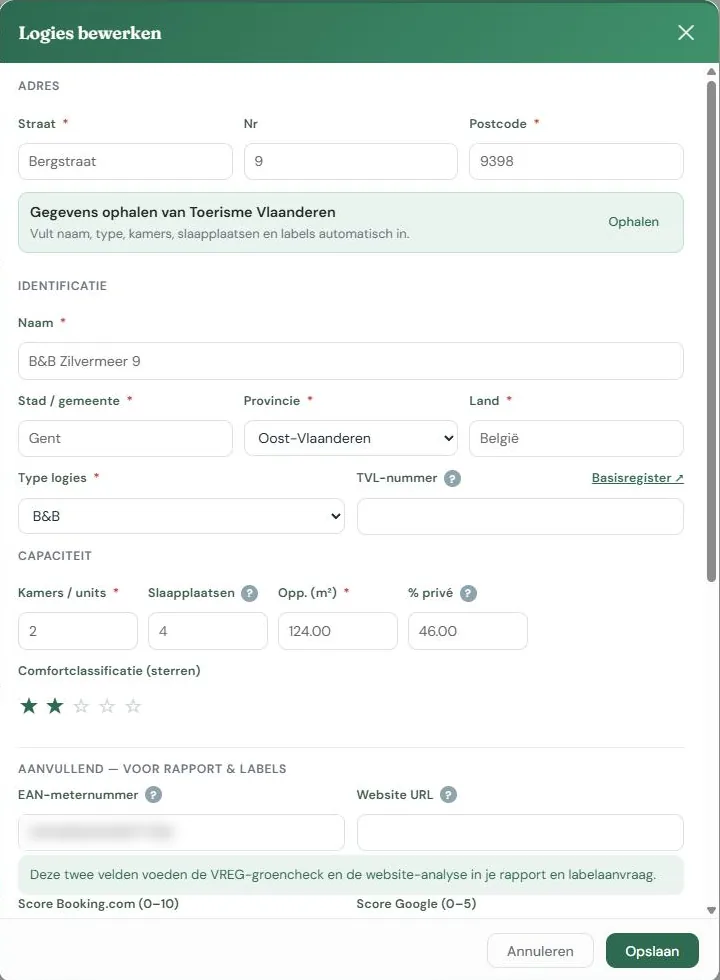
Name, type (B&B, hotel, holiday home, etc.), address, number of rooms, and number of beds. These usually come from the automatic retrieval; you can adjust them.
Surface area and percentage of private use
The surface area is the living space of the building in m².
The percentage of private use is crucial if you live in the building yourself. If you occupy 60 of the 200 m², you enter 30%, and that part is excluded from your consumption. If you don’t fill this in while living there, your accommodation will appear to consume much more than it actually does. See How we calculate.
EAN number and website
Both optional, both useful. With your EAN number, the platform can check if you purchase green electricity. With your website, the AI analysis can look at how you currently communicate about sustainability and where it can be improved.
Labels already obtained
If you already have a label, check it and enter the year you obtained it. This is possible for Green Key and EU Ecolabel. It will appear in your report, help the label selection tool provide sensible advice, and the certification module will determine whether an EU Ecolabel application is a first-time application or a renewal.
For the EU Ecolabel, there is also a date field applied for on. The platform uses this to calculate your biennial reporting to the competent authority (criterion 5.2: within two years of the application, and every two years thereafter). Fill in the date even if you have had the label for a longer time; the platform will calculate your next deadline. The field is separate from the checkbox: if you have applied for the label but haven’t received it yet, the clock is already running. See The dashboard.
Editing the accommodation later
Everything remains adjustable. If your number of rooms or private percentage changes, adjust it; it will apply to new calculations from that moment on.
If you change something that affects the calculation while a year is already published, the platform will first ask for confirmation. Such a change can unpublish the published year. See Publishing.
Manage this accommodation
In the Management block, you will find export, share, and delete. Delete is separate and comes with a warning, as it also removes your years, measurements, and documents.
Further reading
The overview and the context bar
Laatste update: 02/11/2026
After logging in, you’ll arrive at the overview: all your accommodations side by side, with the key figures for the most recently published year for each. From there, you can go to each tool.
The overview cards
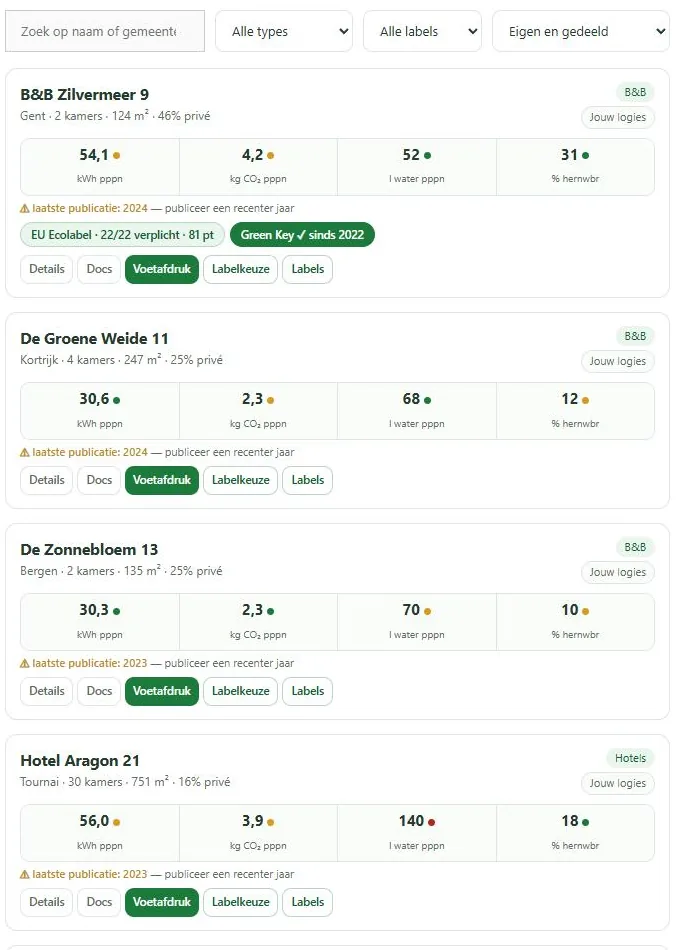
Each accommodation is a card. It shows the name, type, and whether you are the owner or if it has been shared with you. Next to that are the most important figures from your last published year, and which labels you have.
If you don’t have any accommodations yet, you’ll see a card to add one.
What the key figures mean
You see your consumption per person per night and your share of renewables. Behind those figures is a colored dot: it tells you how you score compared to similar accommodations. Green is among the top third, orange is middle of the pack, red is the bottom third.
That dot comes from the same calculation as the detail screen, so what you see here matches what you’ll find further on.
For many accommodations, the score is only calculated when you request it, using a button at the top. This saves processing power for cards you might not view.
The year line
Below the figures, it shows which year is being displayed. If your last publication is older than the previous year, you’ll see a gentle warning that there is a more recent year to publish.
Filtering
If you have many accommodations, you can filter by label and by owned or shared, and search by name.
The context bar
As soon as you choose an accommodation, a bar appears at the top with the name of that accommodation. It stays there while you navigate through the tools, so you always see what you’re working on. You can also switch accommodations in that bar.
The Labels button only appears on the overview card and in the context bar if a label process is open for that accommodation. Until then, the path to the labels is through the label selection. See Access to the process.
On a narrow screen, the bar becomes more compact, with icons instead of full buttons.
Switching accommodations
Via the context bar or by going back to the overview. The platform remembers which accommodation you last chose, so next time you’ll be in the right place immediately.
Read more
Sharing your accommodation with a colleague
Laatste update: 02/11/2026
You can give someone else access to your accommodation: your partner, a fellow host who is helping you out, or someone who fills in the figures for you.
Where to find it
Sharing is located under the management of your accommodation, not under measurements.
- Go to the overview and click on Details for the correct accommodation.
- Scroll down the page to the Management of this accommodation block.
- Click on 👥 Share.
Only the owner of an accommodation sees that button. If you are viewing someone else’s accommodation, you cannot share it further. This is intentional: only the person who owns the accommodation decides who can access it.
Who you can invite
In the window that opens, you will see at the top who the accommodation is already shared with. Below that, it says ➕ Share accommodation with someone.
You enter the person’s email address. If you want them to be able to fill in data as well, check Write permissions. If you leave that blank, the person will receive read permissions. Then click Share.
The person will automatically receive an email stating that an accommodation has been shared with them.
No account yet? If that email address does not have an account on this site yet, the platform will notify you and offer to send an invitation. The person then creates an account themselves, and after that, you share it again.
Read or also modify
Two levels, and you can see them listed per person as a label:
| Label | What that person can do |
|---|---|
| 👁 Read | Sees everything for this accommodation, cannot change anything |
| ✏️ Write | Can also add and edit measurements and data |
Publishing, further sharing, and deleting the accommodation always remain reserved for you as the owner, even with write permissions.
This also applies to the link with EnergyID. Only you link the accommodation, choose the meters, and disconnect. Someone with write permissions can see if the accommodation is linked and which meters are counted, and can have the data refreshed, but cannot see the contents of your EnergyID account. Someone with read permissions does not see the EnergyID block. See Automatic filling via EnergyID.
Revoke access
In the same list, the Revoke access button is located behind each person. You will receive a confirmation question, and then access is immediately removed.
What that person previously filled in will remain. It is your data; sharing only gives access, not ownership.
What the other person sees
Everything for this single accommodation: your data, your measurements, your occupancy, your documents, and your history. Not your other accommodations, and not your account.
Occupancy figures are sensitive business data. So share consciously, and revoke access when the collaboration ends.
Further reading
Documents and evidence
Laatste update: 02/11/2026
Invoices, inspection certificates, an EPC, your environmental policy: documents substantiate what you fill in. You save them once and link them to the year, the measurement, or the label criterion they belong to.
Where to find it
- Choose your accommodation in the overview or in the bar at the top.
- Click on Documents. This button is located both on the map in the overview and in the bar at the top of the screen.
- The document file opens over your screen; so you don’t leave your work.
If you want to attach a document to a single measurement, use the document button on the row of that measurement in the Energy or Water tab.
Opening the document file
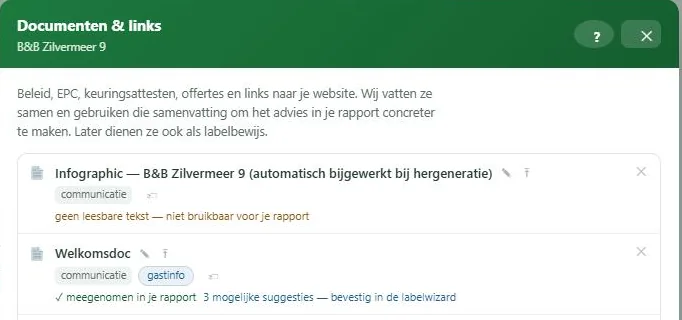
Documents have their own screen, which you open from any module. So you don’t leave your work.
Upload a file or register a link
Two possibilities. You upload a file, or you register a link to something that is already online. A link is just as valid as evidence and takes up no storage space.
When adding, you specify a target type and optionally a description. The target type says what kind of document it is: an invoice, a certificate, an EPC, a policy document.
Validity and versions
Documents expire. You can provide a valid until date, so you can see when something expires. For an EPC, ten years is suggested.
If you replace a document, use the button for a new version instead of deleting the old one. The previous version remains in the history, so that evidence you provided last year remains correct.
Tags
A tag says what a document is about: energy, water, policy, communication. The platform suggests tags based on the content, you confirm or adjust. These tags determine where the document can serve as evidence later.
What the automatic analysis does
When adding, the platform reads the document and creates a short summary: what kind of document it is, from when, and what it contains per theme. This summary later feeds your report and the label advice.
The analysis never claims that something complies. It makes suggestions, and you confirm.
The comparison with the label criteria only happens if a label trajectory is open for your accommodation. Statbel files that you upload for your occupancy are not summarized: their figures are already in your occupancy.
If you upload a Green Key audit report, the platform recognizes it and reads the criteria as soon as a label trajectory is open. The file then states, for example, “Green Key report read: 123 criteria, 90 with yes”. You can read about what that yields in the certification module under The wizard: answering criteria.
Having a scanned document read
If your PDF is a scan without text, the platform has it read by an AI. A scan of up to 30 pages happens automatically, in the background; this may take a while. If the scan is longer, there is a button to start the reading. Reading costs computing power and therefore energy and money, hence that limit.
If you are working on a label and the platform finds possible evidence for a criterion in the scan, you will receive an email. See Emails you may receive.
Documents with a measurement
In addition to documents of the accommodation or of a year, you can attach a document to a single measurement, for example the invoice on which that figure appears. One invoice can be attached to multiple measurements.
Who sees your documents
You and the people with whom you share the accommodation. Documents are never included in the benchmark. The AI analysis runs at a provider on renewable energy. See Comparing without revealing your data.
Delete
If you delete a document that is attached to multiple places, it will only be disconnected from that one context. Only when no connection remains does the file truly disappear. If a document substantiates a label criterion, you will receive a warning about it.
Further reading
The footprint module
Laatste update: 02/11/2026
The footprint module maps out where you stand today. You enter your annual energy and water consumption, along with the number of guests. Based on this, the platform calculates your consumption and CO₂ emissions per person per night, and anonymously compares you with accommodations similar to yours.
What the module does and doesn’t measure
Included: electricity, gas, heating oil, pellets, solar energy, heat pumps, and other energy sources, plus your water consumption. This results in your CO₂ emissions from your own combustion (scope 1) and from purchased energy (scope 2).
Not included: waste, food, guest mobility, biodiversity. This is a conscious choice, not an oversight. See What a footprint is, and what it isn’t.
The route in brief
- You create an accommodation, or your accommodation is already listed.
- You create a reporting year of twelve months.
- You enter your occupancy: room nights and person-nights.
- You enter your energy and water measurements, or have them automatically retrieved from EnergyID.
- You publish the year. From then on, you can see the benchmark.
- You create a report and an infographic.
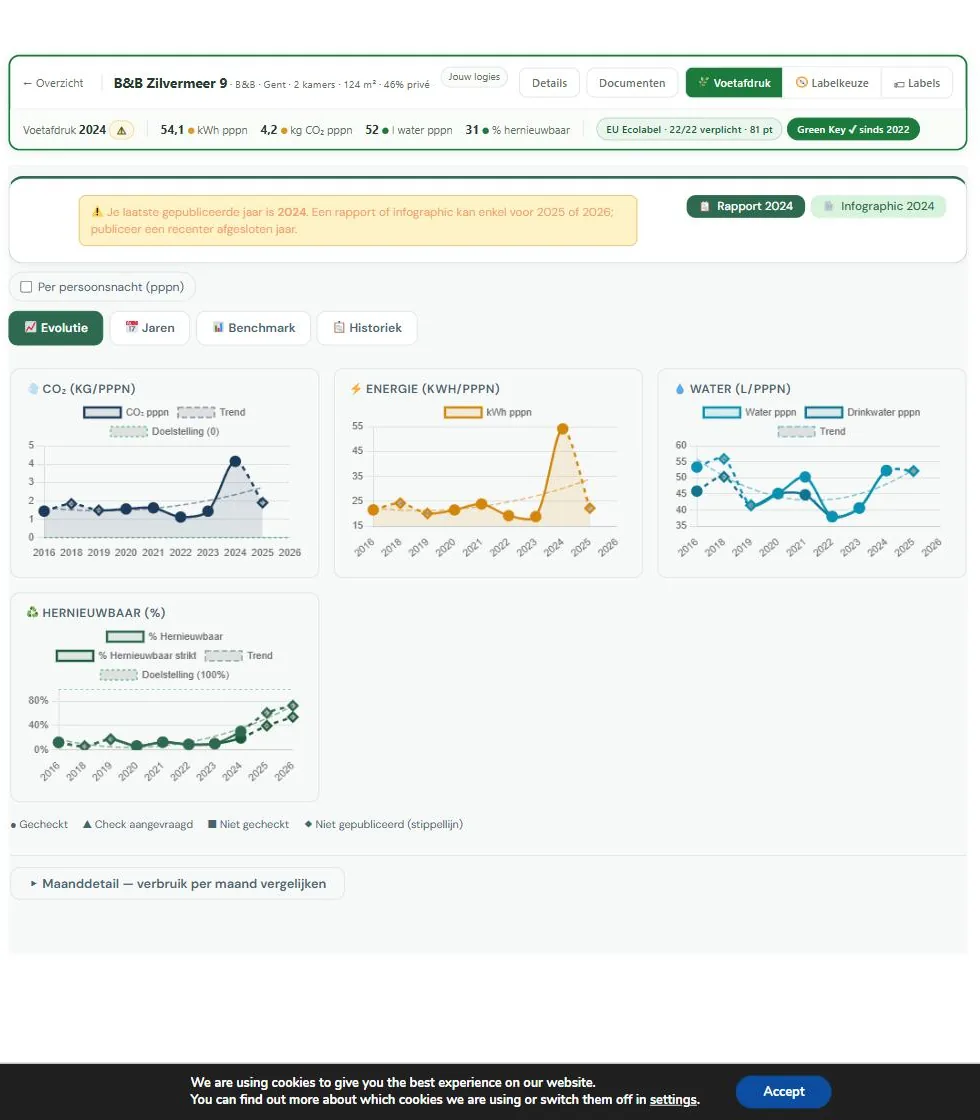
Steps 1 to 4 take the most time, and only the first time. The following year is mostly just updating.
What you need to get started
Your address, your occupancy figures, your annual electricity and gas consumption, and your water consumption. That’s all you need to start. You can fill in the rest later.
If you want to see the results first, start with Quick start. If you want to collect everything first, check What data do you need.
How much time it takes
Count on half an hour for an initial result if you have your invoices at hand. A fully completed year with all energy sources, documents, and monthly data takes about two to three hours, spread over a few sessions.
Further reading
Quick start: your first report in thirty minutes
Laatste update: 02/11/2026
Want to see what this gets you before investing a lot of time? With just four pieces of data, you can already reach an initial result.
Check this first
You need recognition from Toerisme Vlaanderen to be able to publish. Without recognition, you can fill in and view everything, but your accommodation won’t be included in the benchmark.
What you need at a minimum
- Your address. With this, the platform automatically retrieves the name, type, and number of rooms from Toerisme Vlaanderen. If you live in the building yourself, keep your percentage of private use handy as well.
- Your occupancy: room nights and person nights. The easiest way is to upload your monthly Statbel declarations; the platform will add them up for you.
- Your annual electricity and gas consumption. You can find this at a glance on Mijn Fluvius.
- Your annual drinking water consumption in m³. This is on the bill from your water company.
A full list of everything you can fill in can be found under What data do you need.
Step by step
- Create an account and log in.
- Add your accommodation with your address and have the data retrieved from Toerisme Vlaanderen.
- Create a reporting year, usually the year that has just ended.
- Fill in your occupancy, or upload your Statbel files.
- Enter electricity, gas, and drinking water. If your consumption is already in EnergyID, you don’t have to retype anything.
- Publish the year.
- View your benchmark and create your report.
Ready to start? Open the footprint module ⧉
No stress
You don’t have to finish everything at once. What you fill in is saved, and you can complete it later. If an energy source is missing, the rest remains accurate.
Only publishing requires a complete year. As long as you don’t publish, nothing is final and nothing counts towards the comparison.
Further reading
What information do you need
Laatste update: 02/11/2026
Before you start, it’s useful to have your details at hand. Here is a breakdown of what you need and where to find it.
Accommodation details
Your address is enough to get started: the platform uses it to retrieve the name, type, number of rooms, and your registration from Toerisme Vlaanderen. You can fill in the rest yourself:
- Surface area of the building in m².
- Percentage of private use. If you live in the building yourself, that part does not belong to your accommodation. Estimate it based on surface area: if you occupy 60 of the 200 m², that is 30%.
- Number of beds in addition to the number of rooms.
Occupancy data
Room-nights and person-nights over the full year, as a yearly total or per month. Sources: your Statbel declarations, your booking system, or your guest register. See Filling in occupancy.
Energy consumption
- Electricity in kWh per year, and separately your export to the grid if you have solar panels. Both can be found on Mijn Fluvius.
- Gas in kWh, as it appears on your annual statement. The platform does not accept the figure in cubic meters from your gas meter.
- Solar energy: the total yield of your panels, from your inverter’s app.
- Heat pump: the electricity consumption plus the SCOP of the device.
- Other sources: heating oil, LPG (propane or butane), wood or pellets, solar thermal, own wind turbine, hydrogen.
- Your EAN number. Found on your invoice and on the digital meter. Optional, but handy.
Water consumption
Your drinking water consumption in m³, from your water distributor’s statement, their customer portal, or your meter. If you have a rainwater tank or your own well with a meter, note those separately.
Optional data
Not required to start, but useful for a richer report:
| Data | Purpose |
|---|---|
| EAN number | Automatic check if you purchase green electricity |
| Website URL | Analysis of how you communicate about sustainability |
| Existing labels | Context in your report and label selection |
| Score on Booking.com or Google | Link between sustainability and guest experience |
If something is missing, start anyway. You can always add more later, and an incomplete year still provides a useful picture. Only publishing requires a complete year.
Read more
Creating a reporting year
Laatste update: 02/11/2026
Your footprint is always calculated per full year. Twelve months, no more and no less, because otherwise you can’t compare yourself with other accommodations.
Where to find it
- Open your accommodation and go to the Years tab.
- Click on + New year at the top right.
- Choose the year and fill in your occupancy.
Why per year
Consumption fluctuates significantly throughout the year: heating in winter, cooling and more guests in summer. Only a full year provides a meaningful figure, and it’s the only way to compare two years side by side.
Adding a year
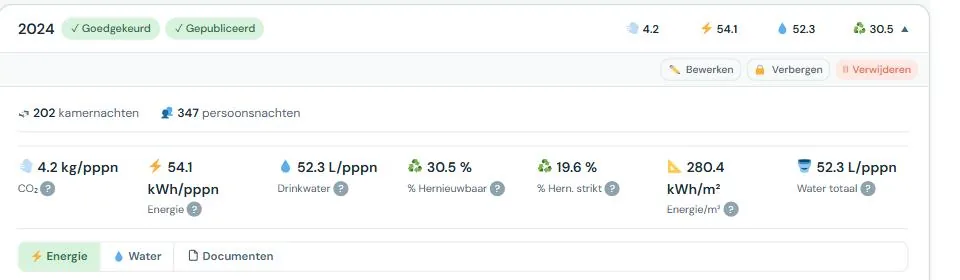
In the footprint screen, you’ll find the Years tab. There you’ll find the button to add a new reporting year. You choose the year and fill in your occupancy; the rest follows after that.
A non-calendar year
The reporting period doesn’t have to be a calendar year. If your financial year runs from April to March, or if your billing aligns better with another period, that’s possible. The condition remains twelve months.
Choose a period once and stick to it. If you shift it later, you’ll be comparing apples to oranges, both with yourself and with the benchmark.
Multiple years side by side
You can create as many years as you have data for. The more years, the more meaningful your evolution. Two years is the minimum to see a trend; three or more makes it clear if a change is lasting.
If you use EnergyID, Retrieve data will automatically create the years for which EnergyID has figures, starting from the oldest year you already have. If you want to go further back, first create the oldest year you want and then click Retrieve data. See Automatic filling via EnergyID.
Deleting a year
Deleting is possible, but think first. Documents that were only attached to that year and aren’t referenced anywhere else will disappear too. Documents that are also linked elsewhere will remain.
If the year was published, it will also disappear from the benchmark. This has consequences for the comparison group of other operators, so only do it if it’s really necessary.
Read more
Entering occupancy
Laatste update: 02/11/2026
Your consumption alone doesn’t say much. A forty-room hotel naturally uses more than a four-room B&B. To make a comparison possible, the platform divides your consumption by your occupancy. Without occupancy figures, there is no footprint and no benchmark.
Where to find it
- Open your accommodation and go to the Years tab.
- Click to open the year and then click ✏️ Edit.
- In the Edit period window, enter room nights and person nights, or click Import from Statbel.
In the same window, you’ll also find the checkboxes for laundry and for charging electric vehicles.
Room nights and person nights
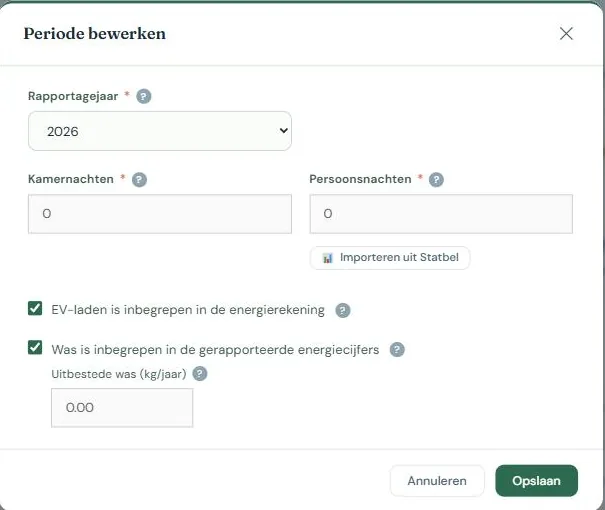
Two numbers, both covering the entire reporting period.
Room nights is the number of rooms that were occupied, multiplied by the number of nights. Three rooms that were each occupied for ten nights gives 30 room nights.
Person nights is the number of guests multiplied by the number of nights they stayed. A family of four staying for three nights gives 12 person nights.
Your footprint is expressed in both: per person per night (pppn) and per room per night (prpn). Person nights are fairer for comparing different accommodations, while room nights say more about how efficiently your building is running.
Fill in both if you have them. If you only have one, the platform will work with what you have, but part of the comparison will be lost.
Occupancy per month
In the Edit period window, there is a button 📅 Occupancy per month. This opens twelve rows for room nights and person nights, with a running total and its own save button. As soon as there are monthly figures, your annual total is the sum of those months, and it grows with every month you add. For a current year, this is therefore a year-to-date figure. This is fine: you cannot publish the current year yet anyway.
If a month remains empty while later months are filled in, you will receive a warning. Usually, that month has been forgotten, meaning your annual total is too low. If you were actually closed that month, you can proceed.
If you are a seasonal business, check This year is fully entered as soon as all the months you were open are in there. Then the platform knows that the empty months are not forgotten months, and the warning disappears.
The platform never automatically adjusts a published year. If you want to change the annual total there, you do so in the period form, and the year will then be unpublished.
Import from Statbel
If you report your accommodation figures to Statbel monthly, you don’t have to retype anything. You upload the Statbel PDFs and the platform puts each month in its place under the monthly occupancy. Your annual total is the sum.
You will first see what happens per month: new, will be adjusted, unchanged or remains, with the current and new figures side by side and the consequence for your annual total. The figures are only applied once you confirm. Months not in your files remain as they are, so you can safely upload a single month later. Uploading the same file twice does not count double. If something isn’t right, you can correct it manually.
If the files belong to a different year than the one you are editing, the platform will warn you in that proposal.
If you manually entered the annual total for an unpublished year without monthly figures, and then upload one month, your annual total will become the sum of the months—meaning just that one month. The proposal shows this beforehand with both figures. In that case, upload all months or fill in the missing months yourself.
Statbel counts a stay in the month the guest departs. This makes almost no difference to an annual total, but it does at a monthly level: a stay ending on January 2nd counts entirely towards January. Therefore, monthly figures per person night are only indicative.
The uploaded files are stored with your accommodation and are only visible to you and the people you share the accommodation with.
Manual entry
If you don’t have a Statbel declaration, you enter the two numbers yourself. Sources that are usually sufficient: your booking system, your guest register, or your tourist tax declaration.
When in doubt, it’s better to be conservative than too generous. Occupancy figures that are too high make your footprint look artificially favorable, and you’ll be comparing yourself against an incorrect figure.
Laundry and electric vehicle charging
Two checkboxes that affect your footprint:
- Laundry included. If you do the laundry yourself, that consumption is included in your energy figures. If you outsource it, it isn’t, so you specify the number of kilograms of outsourced laundry. This keeps the comparison fair against accommodations that do their own laundry.
- EV charging included. If guests charge their cars at your place, that electricity is in your meter reading even though it has nothing to do with your accommodation. By indicating this, the platform can take it into account.
Who sees your occupancy figures
Only you and the users you explicitly share this accommodation with. They never enter the benchmark as an individual figure: only the result per person night is counted anonymously. See Comparing without revealing your data.
Common mistakes
- Swapping room nights and person nights. Person nights is almost always the larger number.
- Only filling in the summer. The figures must cover the entire reporting period, including the months you were closed.
- Entering the number of bookings instead of the number of nights. A booking of four nights counts as four.
Read more
Enter energy and water measurements
Laatste update: 02/11/2026
For each energy source and water type, you enter what you consumed that year. The platform automatically converts everything to kWh and kg CO₂e, so you don’t have to calculate anything yourself. Those CO₂ figures also include the extraction and transport of the fuel, not just the combustion at your location; see How we calculate. You can find the measurements in the footprint screen, under the year they belong to, in the Energy and Water tabs.
If you have an EnergyID account, read Automatic entry via EnergyID first. Then you won’t have to do most of this manually.
Adding an energy measurement
The entry form is located below the table with existing measurements. You fill in:
Energy type. Choose from the list, for example Electricity (Grey), Gas, or Own solar energy. The type determines which emission factor is used for the calculation, so choose accurately. If you are unsure between Electricity (Grey) and Electricity (Green with GOs), check the renewable percentage.
Unit. The selection list only populates after you have chosen a type, and only shows the units applicable to that type. You enter heating oil in liters or kilograms, pellets in kilograms. If there is only one possible unit, it will be selected automatically.
For gas, kWh is the only unit. That figure is on your annual statement. Your gas meter shows cubic meters, but the conversion to kWh depends on the composition of the gas and varies by region and month. Your grid operator has already performed this conversion correctly on your invoice, so we use that instead of estimating it ourselves.
Input. Two buttons: Annual total or Per month. Annual total is the standard method. Per month is optional and described under Consumption per month.
Quantity. The number as it appears on your invoice or meter reading. The chosen unit appears behind the field, so you can see what you are entering.
Meter number. Optional. Useful if you have multiple meters of the same type, for example two inverters of different brands. It does not affect the calculation.
If you save a measurement in a year that has already been published, the platform will first ask for confirmation. See Publishing.
Heat pump: entering SCOP
If you choose Heat Pump as the type, an additional mandatory field appears: SCOP. This is the seasonal coefficient of performance, or how much heat your pump delivers on average per unit of electricity. An SCOP of 3.5 means 3.5 kWh of heat per 1 kWh of electricity.
You can find this figure on the technical data sheet or on your installer’s quote. Without the SCOP, the platform cannot calculate which part of your heat counts as renewable.
Wood or pellets
If you burn wood or pellets, choose Biomass (wood/pellet) and enter your fuel consumption. If you have a heat meter (calorimeter) on your boiler, you can also choose Biomass with heat measurement and enter the heat delivered in kWh.
Use only one of the two for the same boiler. If you enter your fuel for the second type, or your heat for the first, your total will no longer be correct.
The difference lies in the strict renewable percentage according to EPC/NR: there, heat from biomass only counts if it is measured. For your CO₂ and your regular renewable percentage, biomass counts in both cases. See How we calculate.
Solar panels: yield and injection
There are two separate types for solar panels, and you need both if you feed back into the grid:
- Own solar energy is the total yield of your panels, including the part you consume yourself. You can find this figure in your inverter’s app.
- Electricity injection to grid is the surplus you have fed back. This is on your statement or on Mijn Fluvius.
If you only enter the injection, you underestimate your own production. If you only enter the yield, the part fed back is incorrectly counted as your own consumption.
Entering injection is not a minor detail. The electricity you feed back is subtracted from your consumption. If you leave it out, your total will be too high and your renewable part will be too high, so your renewable percentage will be incorrect in two ways. You can find the figure on Mijn Fluvius. See How we calculate.
Present but not measurable
Sometimes you have an energy source where you cannot measure consumption, for example a wood stove where you don’t know how much you’ve burned. In that case, check Not measured this year. The quantity field will then be disabled.
The source then counts as unknown instead of zero. That is more accurate: zero would mean you consumed nothing, which would distort your renewable percentage and your CO₂ figure.
Reading the table
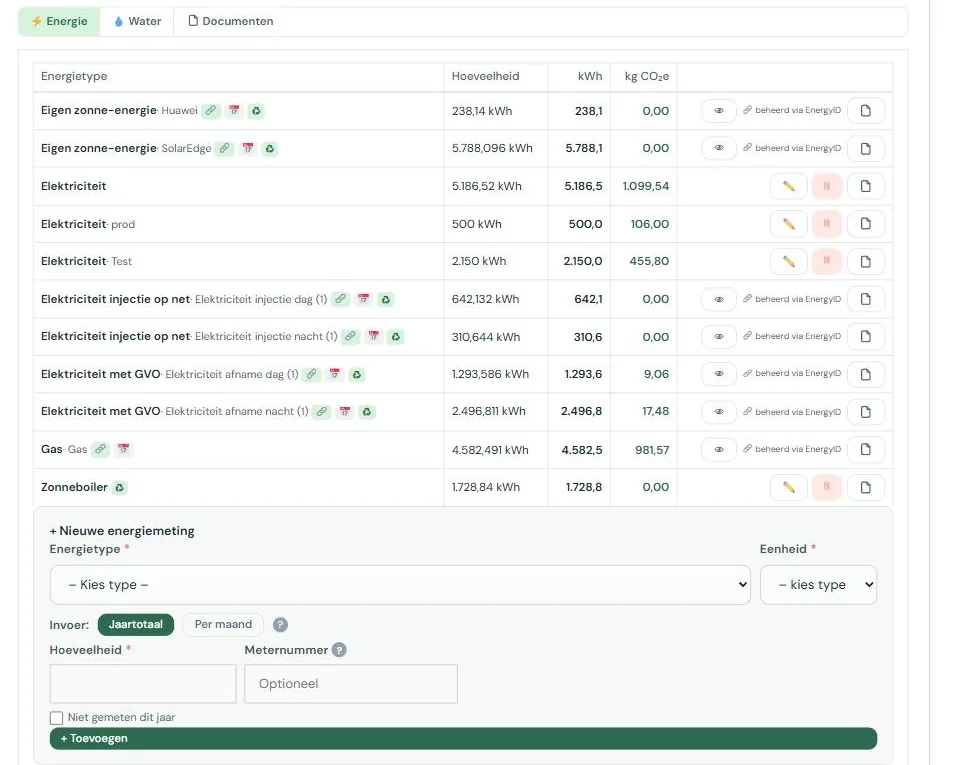
The table shows the energy type, the quantity, and what the platform calculated from that in kWh and kg CO₂e for each measurement. Small symbols may appear behind the name:
| Symbol | Meaning |
|---|---|
| 🔗 | Automatically filled from EnergyID |
| 📅 | The annual total is the sum of the entered months |
| ♻ | Counts as renewable |
| ⚠ | This type has both manual and EnergyID data; both are counted, so possibly double |
| EPC X | This energy type cannot be processed in the EPC/NR calculation |
| X not measured | Present, but consumption is unknown |
That orange triangle deserves attention. It means that for the same energy type, you have both a manual measurement and an EnergyID measurement. The platform adds them both up, so your annual total is then likely too high. In that case, remove the manual measurement, or remove the meter in the EnergyID block.
Water measurements
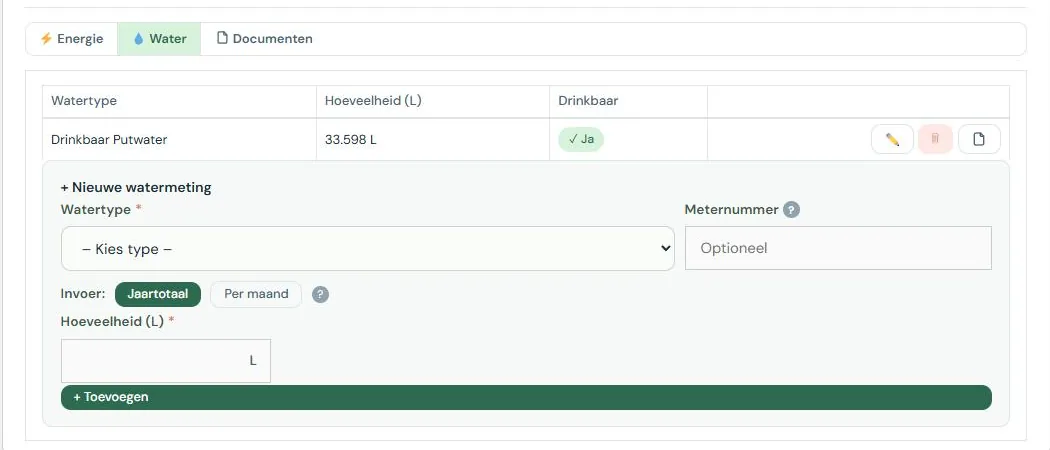
The Water tab works the same way, with three differences. You choose a water type instead of an energy type, the unit is fixed at liters, and the table shows a Potable column instead of kWh and CO₂e.
Drinking water, rainwater, and groundwater are separate types. That distinction matters: the benchmark primarily looks at your drinking water consumption, because using rainwater instead of drinking water is exactly what you want to achieve.
On your water bill, consumption is usually stated in cubic meters. One m³ is 1,000 liters.
Changing or deleting measurements
Behind each manual measurement are three buttons: edit, delete, and a document button with a counter. Use the latter to attach an invoice or meter reading to the measurement. See Documents and evidence.
Measurements managed by EnergyID cannot be edited or deleted. They show “managed via EnergyID” and an eye button to view the monthly data. If you still want to adjust such a measurement, first remove the meter in the EnergyID block.
Common mistakes
- Entering the number from your gas meter instead of your invoice. The meter shows cubic meters, the platform expects kWh. The difference is roughly a factor of twelve, so this will stand out in your results. Copy the annual consumption in kWh from your statement.
- Forgetting injection. Without an injection figure, it looks like you consumed all your solar power yourself.
- Entering part of the year. A measurement should always cover the full reporting period. If you only have part of it, use the monthly entry.
- Including private consumption without filling in the private percentage. If you live in the same building, check if the private use percentage in your accommodation details is correct.
Read more
Monthly consumption
Laatste update: 02/11/2026
In addition to a yearly total, you can also enter your consumption per month. This is not mandatory. It is useful if you want to see when you consume, not just how much.
Where to find it
- Open the year you want to fill in, in the Years tab.
- Choose the Energy or Water tab.
- In the entry form, set the Input option to Per month. A grid with twelve fields will then appear.
For a measurement coming from EnergyID, you can view the months using the eye icon on the row for that measurement.
When it is useful
- You suspect that something is running out of season that shouldn’t be.
- You want to know how much of your consumption is related to heating.
- You have taken a measure halfway through the year and want to see the effect.
- Your data comes from EnergyID; in that case, you already have monthly figures anyway.
If you just want to know your footprint, the yearly total is sufficient.
Entering monthly values
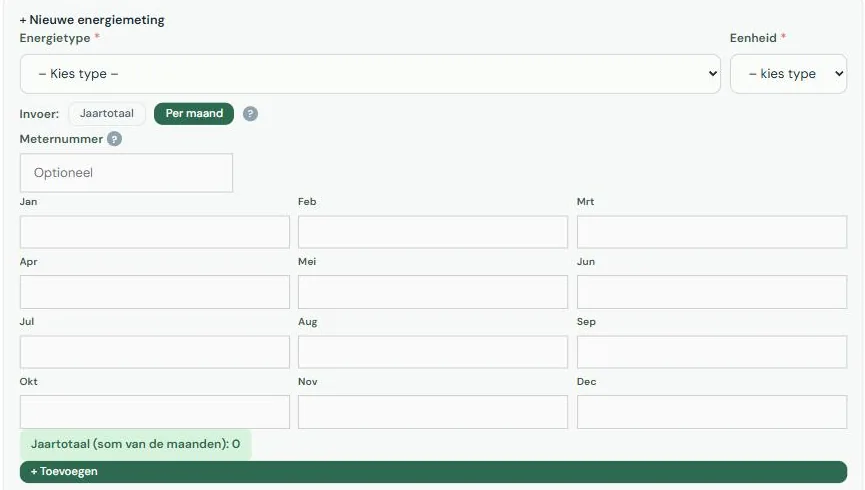
For an energy or water measurement, you choose at the top between Yearly total and Per month. If you choose per month, a grid with twelve fields appears. You don’t have to fill in all months.
The yearly total then becomes the sum of the months. If you switch back to yearly total while the year field is still empty, the platform takes the sum as a suggestion.
In the measurements table, you can recognize such a measurement by a calendar icon: the yearly total is built up from months.
Warning for a deviating month
If a month deviates significantly from the months next to it, you will receive a notification. This doesn’t block anything. Often there is a good reason, sometimes it’s just a comma or one zero too many.
You see that notification in the entry form. If your figures come from EnergyID, you never open that form. For that, there is an email that performs the same check, per meter, as soon as there is a later month with figures. The platform administrator enables that email. See Emails you can receive.
With EnergyID
Measurements coming from EnergyID always have monthly data. You cannot edit them, but you can view them using the eye icon next to the measurement. That screen shows the months per meter separately, so two inverters remain two lines.
Why monthly figures per guest night are an approximation
Your occupancy per month comes from Statbel, and Statbel counts a stay in the month in which the guest departs. A guest staying from December 28 to January 3 counts entirely towards January.
On a yearly total, this levels out. On a monthly level it doesn’t: December then seems emptier and January fuller than they actually were. That’s why we label monthly figures per guest night as indicative. They are fine for the pattern, but not for an exact value.
Read more
Auto-fill via EnergyID
Laatste update: 02/11/2026
If your consumption is already in EnergyID, you don’t need to type anything here. You link your account once, choose which meters to include, and then the platform retrieves your figures automatically.
Where to find it
- Open your accommodation and go to the Years tab.
- Scroll to the bottom, past the list of years, to the Auto-fill via EnergyID block.
- Or click the 🔗 EnergyID button at the top right, which will take you to the same block.
What EnergyID is
EnergyID is an independent platform where you collect your energy and water consumption, for example automatically via your digital meter or via your inverter. Many operators already use it. We read that data; we don’t write anything to it.
Linking your account
In the footprint screen, at the bottom of the Years tab, you’ll find the Auto-fill via EnergyID block with the Link my EnergyID account button. This takes you to EnergyID, where you log in and give permission yourself. We don’t see your password. Only the owner of the accommodation can link the account.
An accommodation retrieves its figures from exactly one EnergyID account. If you have multiple accommodations on the same account, you don’t need to log in again: for the next accommodation, choose the account under Use an account you already linked and click Use this account. If an accommodation belongs to a different account, choose Link another EnergyID account.
After linking, you can see which account the accommodation is connected to, how many meters are linked, when the data was last updated, and if everything is in order.
If you share the accommodation
A co-manager with write access can see in the EnergyID block if the accommodation is linked and which meters are included, and can click on Retrieve data. Only the owner can choose meters, switch accounts, or disconnect, and the content of the owner’s EnergyID account remains hidden from others. Those with read-only access won’t see the block. See Sharing your accommodation with a colleague.
If the accommodation is transferred to a new owner, the platform administrator decides whether the retrieval stops or continues temporarily on the previous owner’s account. In the latter case, you will see this in the EnergyID block. As the new owner, link your own account using Link my own EnergyID account.
Choosing meters
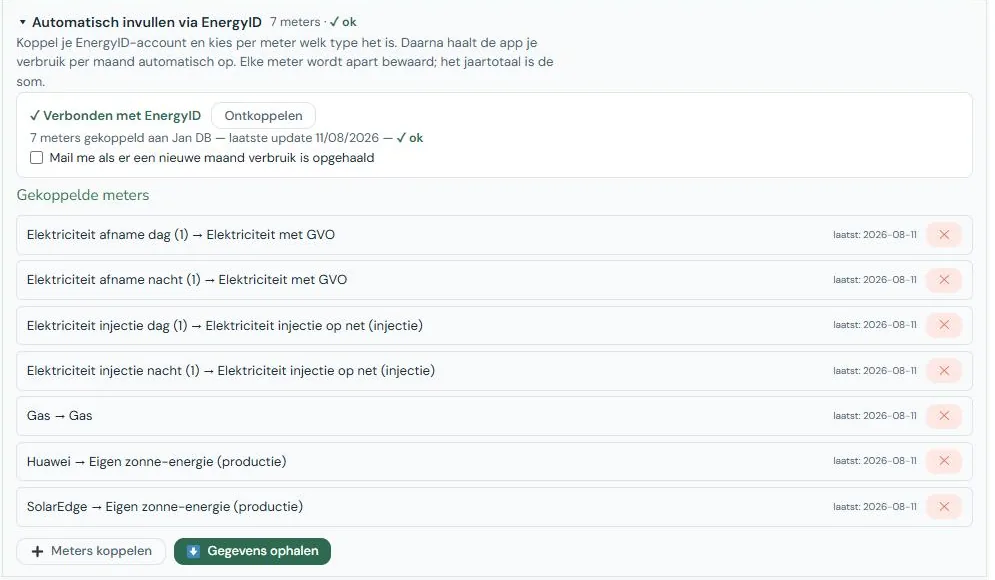
An EnergyID account often contains more meters than are relevant for your accommodation. So you choose them yourself, and you indicate the energy type for each meter. The platform makes a suggestion based on what EnergyID reports, but you confirm it.
Meters that are already linked are marked as such, so you don’t accidentally link the same one twice.
If you have two inverters of different brands, link them both separately. Each meter is saved individually, with its name, so you can see later which one supplied what.
Retrieving data
With the Retrieve data button, you import your figures from the oldest year you already have in the platform up to today. If you don’t have any years yet, the platform starts three years back. The platform automatically creates years for which EnergyID has figures but which don’t exist yet. Published years remain as they are. After that, it happens automatically: weekly by default, but this can also be set to daily or monthly.
The automatic retrieval only looks at the previous and current year, as older years no longer change. You can update older years using the button.
Want to import older figures? First, create the year from which you want to import (see Creating a reporting year) and then click Retrieve data. The years in between will then be created and filled in. Choose a year for which EnergyID already has figures, and don’t go back further than ten years. You fill in the occupancy for those years yourself.
If nothing changes, nothing is rewritten. Your figures are only updated if there is an actual difference, and a line is added to the history.
Measurements from EnergyID are read-only
A measurement managed by EnergyID cannot be edited or deleted. It appears in the table with the note managed via EnergyID and an eye button to view the monthly data.
If you still want to adjust such a measurement manually, first remove the meter in the EnergyID block. This will remove the data for that meter from your unpublished years; published years remain as they are.
If you have both a manual measurement and an EnergyID measurement for the same energy type, both will be counted, making your annual total too high. You will see a warning sign in the measurements table for this. Delete the manual measurement or remove the meter in the EnergyID block.
Emails about your connection
You may receive two types of messages. If your connection has expired, you will receive a one-time email listing the EnergyID account and the accommodations that are affected; until you reconnect, the platform will no longer retrieve anything for those accommodations. Click Reconnect in the EnergyID block: this restores all accommodations on that account at once. You can also receive a message when new monthly figures have been retrieved. The latter is turned off by default; you can turn it on by checking the box in the EnergyID block. See Emails you can receive.
Disconnecting
With Disconnect this accommodation, retrieval stops for this accommodation. The retrieved figures and chosen meters remain, and your other accommodations stay linked.
If you really want to remove a meter’s figures, delete that meter with ✕. Its data will then disappear from your unpublished years; published years remain as they are, and a line is added to the history. After that, you can fill in that consumption manually again.
An EnergyID account that you no longer use anywhere can be removed under Manage linked EnergyID accounts. This appears in the EnergyID block as long as the accommodation is not linked. Accommodations that are still retrieving via that account will then be disconnected; their figures will remain.
Read more
Publishing and requesting a check
Laatste update: 02/11/2026
Publishing means: this year is finished, and it can be included anonymously in the comparison. Only after publishing will you see where you stand compared to other accommodations, and only then does your accommodation count for someone else.
Where to find it
- Open your accommodation and go to the Years tab.
- Click to open the year you want to publish.
- Click on Publish in the button row for that year.
If the button is greyed out, the year hasn’t ended yet. You can’t publish the current year.
What publishing does and doesn’t do
Publishing does not make your figures public. No one ever sees your consumption, your occupancy, or your name. What happens is that your result per person-night is added anonymously to the calculation group. See Comparing without revealing your data.
What it does do: you get access to the benchmark, and you can create a report and an infographic.
Which year you can publish
Only a completed year. You can’t publish the current year, even if it’s almost over. Publishing half a year would create a skewed average in the comparison group and would make your own year-on-year comparison unusable.
In practice, you publish the year that has just ended starting from January.
Before you publish
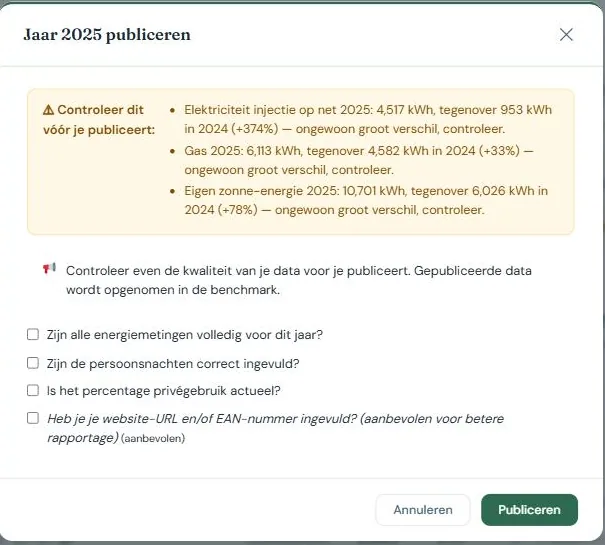
The platform checks a few things and shows what stands out. Those notifications don’t block anything; they just ask for a moment of your attention.
Possible double counting of electricity. If you have consumption listed under both “Electricity (Grey)” and “Electricity (Green with GO)”, it’s often the same power being counted twice. If it is correct—for example, because you switched contracts halfway through the year—you can go right ahead.
An unusually large difference compared to another year. If an energy or water type deviates by more than a quarter from the year before or after, you’ll see that with both figures shown. Usually, there’s a good reason (a cold winter, a new heat pump, a vacant season). Sometimes it’s a typo or the wrong unit.
Additionally, there is one thing that does block: your accommodation must be found at Visit Flanders based on your address. If that fails, check your address details and retrieve them again using the green button in your accommodation details.
Also, double-check for yourself if all energy measurements are complete, if your person-nights are correct, and if your private use percentage is still up to date.
Republishing
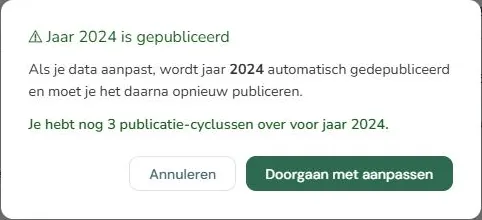
You can republish a year, but not indefinitely: three times by default. The reason is the cost of recalculating. With every publication, your report is rebuilt, including the AI analysis, which costs both money and energy. The platform reuses existing results where possible; this limit is part of that same choice. See A platform that takes its own footprint seriously.
You’ll get a warning on your last available turn. If you have a good reason to publish more often, you can request an exception.
If you change data for a year that has already been published, that year is automatically unpublished and you use a publication turn when you republish it. The platform therefore asks for confirmation before it processes a change in a published year.
Requesting a check
Besides publishing, you can request a check. Someone from Fair Hospitality will then check your figures for improbabilities before they count permanently. This is optional and free.
Useful if it’s your first year, if you’re unsure about a conversion, or if you want to use the figures externally and be certain.
Unpublishing
If you discover an error later, you can unpublish a year, correct it, and publish it again. Keep the counter in mind: that also costs a turn.
Read more
Your evolution and the benchmark
Laatste update: 02/11/2026
A figure on its own doesn’t say much. 42 kWh per person per night is a lot or a little, depending on what similar accommodations consume and what you did last year. There are three views for this.
Where to find it
- Open your accommodation and click on the Benchmark tab.
- At the top, choose who you want to compare with: reference group, type of accommodation, and region.
- Use the buttons below to switch between Evolution vs benchmark, External benchmark, and My accommodation.
How the comparison group is formed
The group consists of published years from other accommodations, filtered by what is comparable, such as the same accommodation type.
There is a lower limit: if there are fewer than three accommodations in a group, nothing is shown, as you could then deduce who consumes what from one or two other accommodations. The bar is set higher for the report. If a year doesn’t reach that size, previous years are included, going back up to three years.
If the group is too small, you will see this explicitly stated instead of a figure that lacks sufficient data.
Evolution over the years
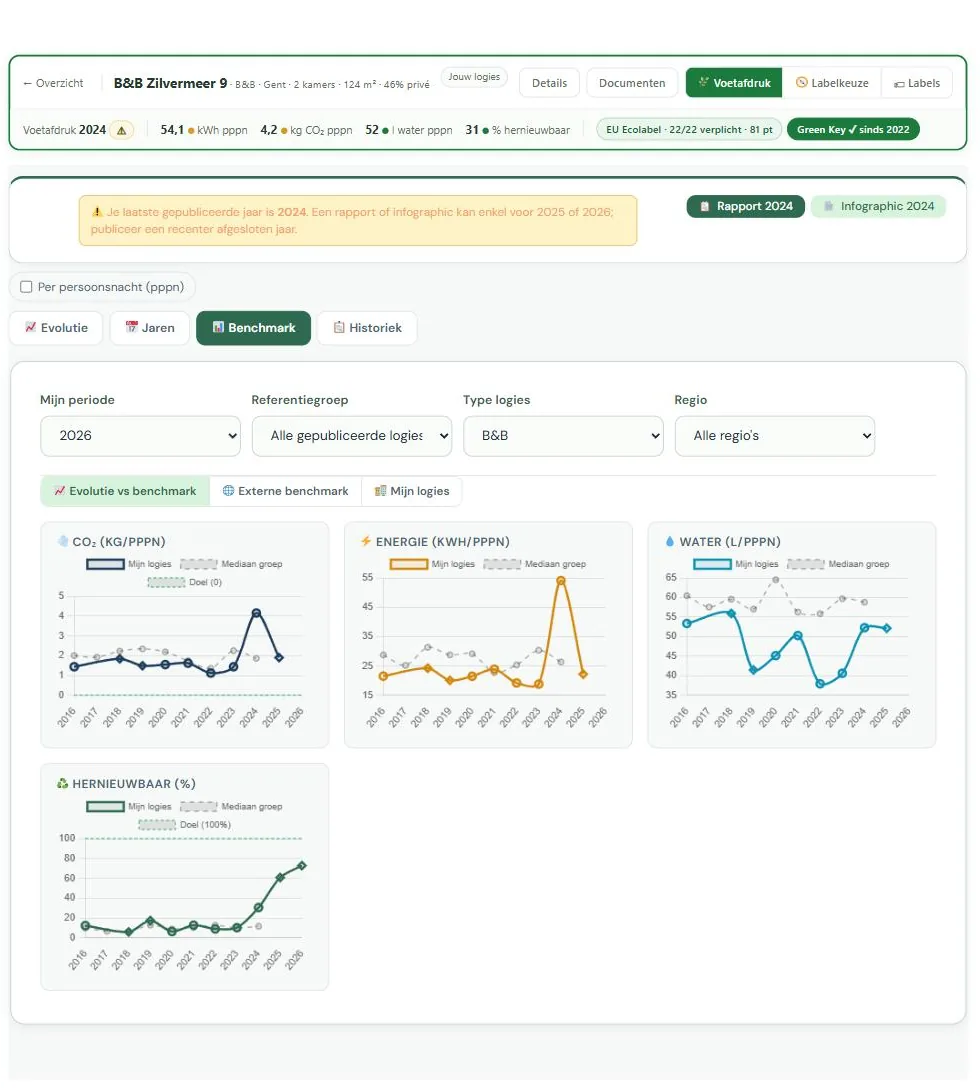
The first view places your figures side by side per year, with the benchmark as a background. Here you can see if you are moving, and in which direction.
This is usually the most useful view, because you are comparing yourself with yourself. Differences between accommodations have a thousand causes (year of construction, insulation, swimming pool, restaurant); differences between your own years usually only have a few.
The spider web comparison
A spider web shows several indicators at once: energy, CO₂, water, share of renewables. This allows you to see at a glance where your strengths and weaknesses lie.
Useful for deciding what to work on first. If you score well on energy but poorly on water, you know where the gains are.
Comparing your own accommodations with each other
If you have multiple accommodations, you can put them side by side. Useful to see if a measure that worked for one would also yield results for another.
Reading percentiles
Your position is expressed in percentiles, not in a ranking. A percentile tells you what percentage of comparable accommodations are performing worse than you.
| Color | Meaning |
|---|---|
| Green | You are among the top 33% |
| Orange | You are in the middle bracket |
| Red | You are in the bottom 33% |
High is always good, including for CO₂ and water. The platform reverses the scale where necessary, so you never have to think about whether a high number is good or bad.
The report and the infographic summarize your percentiles on the four core figures into one average. You can read about what “X% best-scoring accommodations” and the medal there mean, and why the infographic sometimes shows no position, under Report and infographic.
Red doesn’t mean you’re doing poorly. It means there is room for improvement. An accommodation from 1900 with single glazing simply scores differently than a new build, and that is exactly why you should primarily look at your own evolution.
Monthly detail
If you have entered monthly data, you can compare by month. This makes seasonal patterns visible: a peak in winter points to heating, a peak in summer rather to cooling or more guests.
Note when interpreting: monthly figures per person-night are an approximation, because the occupancy per month is based on the guest’s departure date. It suffices for the pattern, but not for an exact value. See Consumption per month.
Why you don’t see names
You never see which accommodation is behind which figure, and no one sees yours. This is not a limitation but the condition under which operators are willing to share their figures. Without that agreement, there would be no benchmark.
Read more
Report and infographic
Laatste update: 02/11/2026
From your published figures, the platform creates two things: a report with analysis and recommendations, and an infographic that you can share with your guests.
Where to find it
- Open your accommodation. The Report and Infographic buttons are at the top, with the year included.
- If nothing has been published yet, they are not available and you will see a notification.
The file opens in a new tab and is simultaneously saved in your documents.
When you can create a report
You need at least one published year. The buttons are at the top of the footprint screen, with the year included so you can see which year is being used.
The report always uses your last published year, not the current one. The current year is by definition incomplete and cannot be published. If your last publication is older, you will see a gentle reminder to publish a more recent year.
If you have just uploaded documents that are still being processed, the platform will first ask if you want to proceed anyway. If you continue, the report will not yet take those documents into account, and a new version will be created later. If you wait a moment, the report will include them immediately.
What is in the report
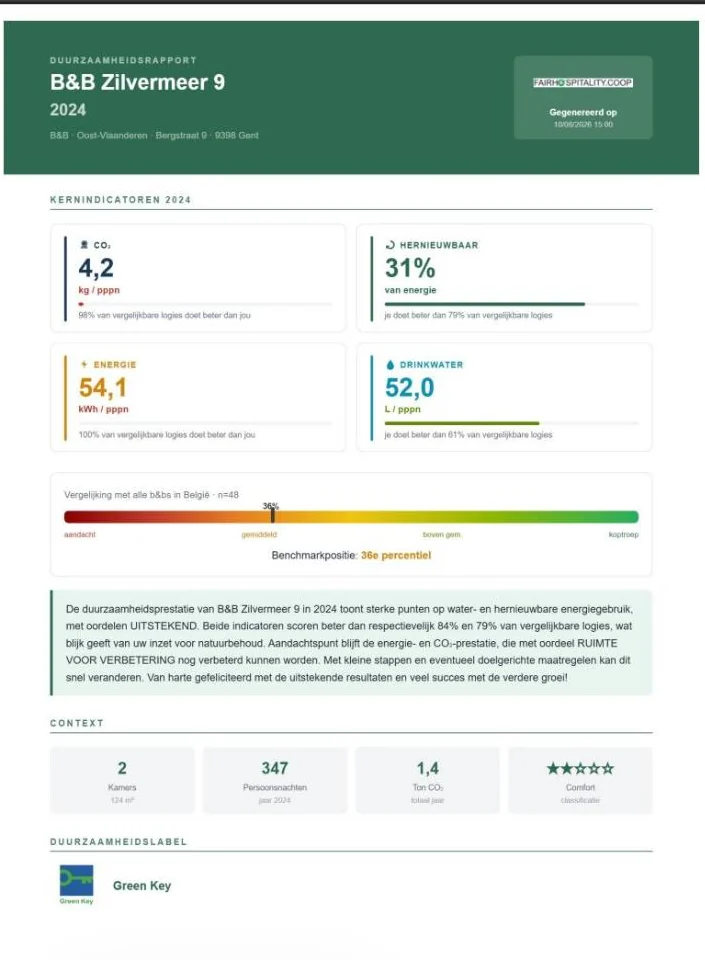
Your key figures and your position in the benchmark, your evolution over the years, and an analysis per theme: energy saving, water management, your sustainability label, and how your website communicates about sustainability.
If you have set goals, the section Your goals and next steps will appear on the first page, immediately after your key figures: for each goal, your starting point, what you want to achieve, where you stand now, and how far along you are. You set goals in the certification module, under criterion 1; see Worksheets and checklists. If you have none, that section remains empty.
The CO₂ figures also include the extraction and transport of your fuels, not just the combustion at your location; see How we calculate. If you have multiple meters of the same type, for example two inverters, the name of each meter is listed in small print after the energy type.
The analysis is written by an AI based on your figures, the documents you have uploaded, and your website. It does not invent numbers: everything it mentions comes from your own data.
The recommendations are suggestions, not an inspection. You know better than a model whether a measure is feasible in your building.
The infographic
A one-page visual with your most important figures, intended for sharing: on your website, in your welcome folder, on social media. You don’t need to set anything up for it.
The sentence at the bottom of the infographic
At the bottom is a single sentence about your performance. Which sentence it becomes depends on your figures:
- A position in the benchmark. If you score better than half of your comparison group, and that group includes at least ten different accommodations, it will say “This accommodation is among the top X% of scoring accommodations”. If you are at the top of everything, it becomes “scores best in its comparison group”.
- Your own progress. If that’s not possible, the sentence compares with your previous published year, based on the measurement where you improved the most: CO₂, energy, or water per overnight stay, or your share of renewable energy. This only happens if there is a clear difference, and never if your CO₂ per overnight stay increased by 5% or more. If that previous published year is not the year before, the sentence mentions the year: “than in 2023” instead of “than last year”.
- A neutral sentence. Otherwise, it says “This accommodation measures its footprint and shares the figures openly”.
The medal depends on the same figure as the report: the average of your percentiles on the four key figures. Gold from 90, silver from 80, bronze from 70, and only if your comparison group includes at least ten different accommodations. Most accommodations do not receive a medal; that is how it’s intended.
“Top X%” is not a literal ranking. It is 100 minus that average, a composite score. The report and infographic show the same figure, but the report also does so for a smaller group. Sometimes the report shows a position where the infographic remains silent.
Why a report is reused
Having a report made costs computing power and therefore energy and money. That is why the platform saves the result: if your data hasn’t changed, you get the existing report back instead of a new one. If something substantial does change, a new version is created.
This is the same choice as the limit on the number of publications. See A platform that takes its own footprint seriously.
Report and infographic are added to your documents
Both are automatically saved as a document for your accommodation. If you create a new version later, it will appear alongside it as a new version; the old one remains in the history. This way, you can always find what you communicated last year. See Documents and evidence.
Read more
History and notes
Laatste update: 02/11/2026
Every change to your accommodation is tracked. This is handy if you’re wondering when something changed, or who did it.
Where to find it
- Open your accommodation and click on the History tab.
- At the top, there’s a field to add a note yourself.
- Below that is the list of what has been automatically tracked, including the date and name.
What is being tracked
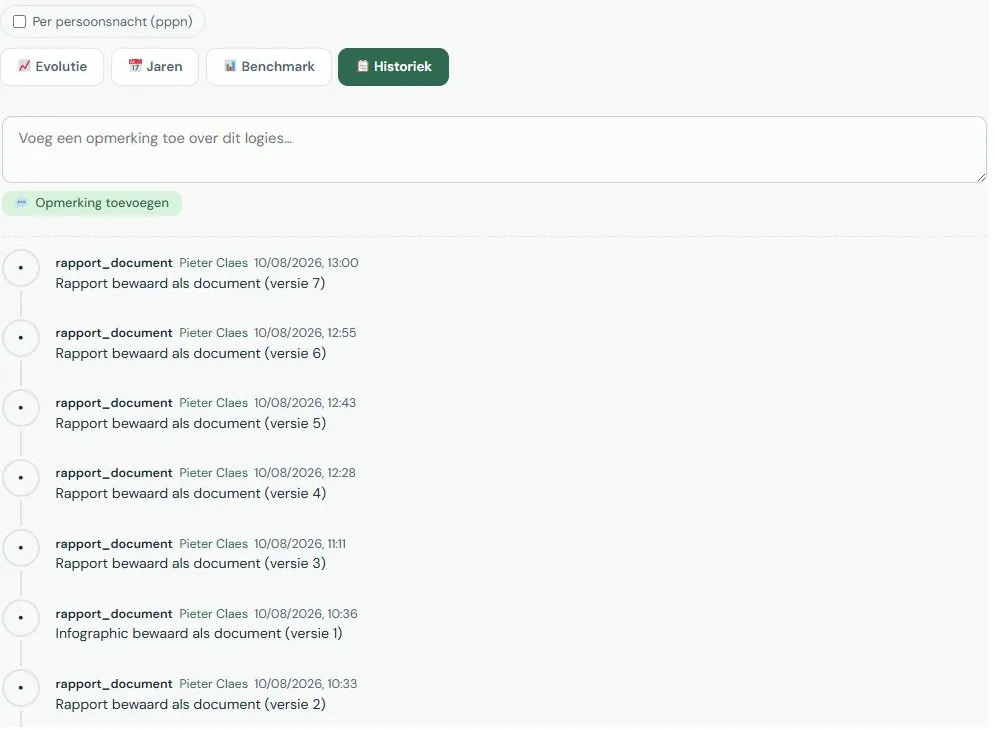
Changes to your accommodation details, created and deleted years, publishing and unpublishing, data automatically retrieved from EnergyID, linked and unlinked meters, and documents that have been added or replaced.
Each line shows when it happened and by whom. If you share your accommodation with someone else, you’ll also see what that person did.
Adding a note
You can add a note to the history yourself. This is useful for recording something you might forget later: why a figure differs, what assumption you made for an estimate, or that the boiler was replaced in March.
A note about an unusual figure can save you half an hour of searching next year. Especially if someone else is reviewing it.
Who sees the history
You and the users you share the accommodation with. The history is never included in the benchmark and is not visible to other operators.
Read more
Does a label fit you? If so, which one?
Laatste update: 02/11/2026
The decision aid answers one question: does a sustainability label make sense for your accommodation, and if so, which one? You answer six questions and immediately receive advice with pros, cons, a price indication, and a suggested path. Expect it to take five minutes. No preparation is needed.
This is an orientation, not a certification. Whether you receive a label is decided by the labeling body itself.
Where to find it
- Open Is a label right for you? If so, which one? in the menu.
- At the top, choose the accommodation it concerns.
- Answer the six questions. Your advice will appear after the last one.
You must be logged in and have at least one accommodation. If you have several, do the exercise per accommodation: the advice depends on the size and your guests.
What the tool knows about you
It retrieves two things itself. It uses the number of rooms from your accommodation file to estimate your size: up to fifteen rooms, we count you as a micro-enterprise, which makes a significant difference in the price of the EU Ecolabel. And if there is a published year in your footprint for this accommodation, it uses your measured figures to sharpen the advice.
A footprint is therefore not a requirement. Without it, the advice remains more general, and the tool will mention this.
The six questions
| Question | Why it matters |
|---|---|
| What is most important to you? | Environment, also social, also heritage, or as broad as possible. This mainly determines which label. EU Ecolabel does not cover cultural heritage, Green Key does. |
| How big is your business? | We don’t know this from your measurement data. It determines whether you pay the micro-rate or the SME-rate for the EU Ecolabel. If you’re not sure, we estimate based on your rooms. |
| Who mostly books with you? | Business bookers and governments increasingly need to justify their choice with an official quality mark. Leisure guests mainly look at what is visible on booking platforms. |
| What can a label cost you? | Think of the total cost over five years, not the entry price. “I don’t want to pay anything for this” is a valid answer and leads to honest advice without a label. |
| How much time do you want to put into it? | Both labels require significant evidence today. Green Key has become a lot more intensive since the 2026-2031 version. |
| What do you expect from your sustainability effort? | More bookings, a higher price, or simply because you think it’s right. That last answer may lead us to advise against getting a label. |
Use Previous to go back and adjust an answer. Restart clears everything and starts at the accommodation choice.
What’s in your advice
At the top is the advice itself, summarized in one sentence. Below that is a text tailored to your accommodation. A moment later, this is replaced by an AI explanation, recognizable by the ✨ AI symbol, with a block What this means for you in practice. If that fails, the standard text simply remains.
Furthermore, you get the pros and cons side by side, an estimated cost, a suggested path in steps, and at the bottom, a warning about what we are NOT sure about.
Always read the small line under the price. It states the assumption the amount is based on, for example “micro-enterprise, based on 9 rooms”. If that assumption is wrong, the amount is also wrong. It is an order of magnitude, not a quote.
The buttons on the advice screen
| Button | What it does |
|---|---|
| Start <label> preparation | Opens the certification module for that label for this accommodation. This button only appears if the process for your accommodation is already open and the module can handle that label. |
| Restart | Clears your answers and starts at the accommodation choice. |
| View other options | Expands the comparison with the two other paths. |
| Start another process yourself | Recalculates the full advice for the label you choose, with its own price, path, and points of interest. |
| Complete questions | Only for incomplete advice: jumps to the first question you haven’t answered yet. |
| Start your footprint | Only for advice without a label and without a published year: takes you to the footprint module. |
| Open the Admin-help | To the certification module, which guides you through the criteria and documents. If it says (coming soon), then that link has not yet been set up on this site. |
| Open your report | To your sustainability report. That reads your measured figures; this advice also weighs your preferences, so the two may sound different. |
| More info | External pages about the label, in a new tab. |
If the start button isn’t there, that’s intentional. Instead, a message appears explaining why: the process is not yet open for this accommodation (with a link to request guidance), or it is open but guidance for that label does not yet exist in the certification module. Currently, that module only works for EU Ecolabel; if you are advised Green Key, that is the answer you will see.
The four possible outcomes
| Outcome | Briefly |
|---|---|
| EU Ecolabel | European environmental quality mark. Strong and affordable for small accommodations with an environmental focus: one-off, no annual fee. Administratively heavy, and nothing about heritage. |
| Green Key | The broadest quality mark: environmental, social, management, and some heritage. Globally recognized, highest adoption in Flanders. Annual cost and recurring audit. |
| No label | Honest advice when the cost and workload do not outweigh the benefits. Your footprint then becomes your substantiation. |
| Regenerative tourism | Not a certificate but a vision and a network (Travel to Tomorrow). Comes up with broad ambition and plenty of time. |
Don’t agree with the proposal? At the bottom, it says Start another process yourself. If you choose a different label there, the tool recalculates the full advice for that label, with its own price and path. The advice is a suggestion, not a decision.
What happens to your answers
Your answers are not saved with your accommodation. If you close the page, you start over next time. This is deliberate: your advice is a snapshot and your circumstances change.
We do keep anonymous track of which combination of answers led to which advice, without your name, your accommodation, or your account. This helps us see if the questions are doing what they should. Your number of rooms is only included as a size class, not as an exact number.
Common mistakes
- Reading the amount without the assumption below it. For EU Ecolabel, micro or SME makes the difference between paying once and paying every year.
- Choosing “I’m not sure” for size when you do know. Then we estimate based on your rooms, and that estimate is rougher than your own answer.
- Reading the advice as a commitment. We do not decide whether you get a label.
From September 27, 2026, under the European Empowering Consumers directive, you may no longer simply claim to be “green” or “environmentally friendly” without substantiation. If you consciously choose no label, your measured footprint is exactly that substantiation. The Belgian implementation and what it specifically means for small accommodations have not yet been clarified in detail.
The certification module
Laatste update: 02/11/2026
The certification module builds your file for a recognized sustainability label. Today, that is the EU Ecolabel: 67 criteria, 142 separate declarations, an official verification form, and a folder of supporting documents. The module keeps track of this, fills in what it can from your own data, and ultimately delivers the package you submit to the competent authority.
You don’t have to do everything at once. Everything is saved per working year, and you can revise any answer later.
Five principles
You declare, the authority decides. The module never says that you meet a criterion. It keeps track of what you declare and which evidence belongs with it. The competent authority assesses this, with an on-site inspection. An AI suggestion is also never an answer: you must confirm it yourself.
“No” is a valid answer. You can simply complete a criterion you don’t meet with a ‘no’. That’s why the module keeps two things separate: completed (you’ve looked at it and answered) and compliant (you also meet the requirement). A file where everything is set to ‘yes’ but nothing is correct won’t help you through an audit.
Reuse what’s already there. Your energy, water, and CO₂ come from your footprint. Your documents are read and suggested for criteria. For sixteen declarations, we prepare a draft text that you can adjust and confirm. What we can fill in, we do.
Nothing is mandatory to start. The profile check asks seven things and, based on that, skips the criteria that don’t apply to you. What you don’t have, we don’t ask for.
Honest about what we don’t know. Prices are indications based on assumptions. Where regulations or monitoring frequency aren’t certain, it says so.
How it works
| Step | What happens |
|---|---|
| Open track | The module works by invitation. If your track isn’t open, you can request guidance. |
| Profile check | Seven questions about your accommodation. Determines which optional criteria are dropped. |
| Dashboard | Where you stand: mandatory criteria, points against the threshold, price, and the process. |
| Wizard | Answer criteria per theme, with template texts and autofill from your measurement data. |
| Evidence | Link documents to the declarations they serve. |
| Submission package | The official verification form plus a zip file of evidence, ready to submit. |
The 67 criteria are divided into seven themes: Energy & CO₂ (21 criteria), Purchasing & consumption (13), Water & wastewater (11), Environment & outdoors (9), General management (7), Waste (4), and Guests & communication (2).
Green Key
The module is built around the EU Ecolabel. You can apply for Green Key and you’ll see the label, but the guidance behind it doesn’t exist yet: the criteria list, the wizard, and the submission package are built on the EU Ecolabel. If you choose Green Key in the selection tool, the module will tell you so literally instead of putting you in the wrong track. It hasn’t been determined yet when Green Key will follow.
Who can do what
Anyone with access to the accommodation can read the content. Filling in answers and linking evidence can only be done by those with edit rights: the owner, or someone with whom the accommodation has been shared with edit rights. Without edit rights, the buttons won’t appear and the reason will be stated below.
Quick start with your file
Laatste update: 02/11/2026
Your first session doesn’t have to take long. In about an hour, you’ll have a profile, an initial overview of where you stand, and one theme completed. The file itself spans weeks, not just one evening.
Where to find it
- Open Certification in the menu.
- Choose the accommodation at the top for which you want a label.
- You’ll arrive at the dashboard for that accommodation.
If your process isn’t open yet, you’ll see an explanation instead of the dashboard with the button Request guidance. See Access to the process.
The first session
| Step | Duration | What you do |
|---|---|---|
| 1 | 5 min | Profile check completion: seven yes-or-no questions about your accommodation. This immediately removes criteria that don’t apply to you. |
| 2 | 5 min | Accept Autofill: if a published year is in your footprint, then energy, CO₂, renewables, and water are ready. |
| 3 | 10 min | Gather documents: drop what you already have into the document file — EPC, inspection certificates, invoices, your cleaning contract. The module reads them and suggests them for criteria. |
| 4 | 25 min | Complete one theme in the wizard. Start with General management: seven criteria, many template texts, little technical detail. |
| 5 | 5 min | Back to the dashboard and see where you stand. |
What you’re starting
Don’t start with Energy & CO₂. That’s the largest theme (21 criteria) and the most technical. General management and Guests & communication together are nine criteria, mostly policy and information, and most text suggestions are ready there.
If you don’t have a footprint for this accommodation yet, do that first. Not because you have to, but because a lot of criteria regarding energy and water will then be filled in automatically. Without a footprint, you fill them in manually.
What not to do in the first session
- Don’t set everything to yes just to move forward. No is a valid answer, and a false yes will come to light during the on-site inspection.
- Don’t generate a submission package yet. That’s the final step; the form builds on your answers.
- Don’t wait until you have everything. A half-completed file is useful: the dashboard shows what’s still needed.
Access to the process
Laatste update: 02/11/2026
The certification module works by invitation. An administrator opens the label for each accommodation. This is a deliberate choice: a label process involves guided work, and a file that stalls halfway through helps no one.
What you see without an open process
You will see the module, but without criteria, scores, or numbers. Instead, you’ll find an explanation about the label and two buttons: Request guidance and a link to the selection tool if you’re not yet sure if this label is right for you.
That is by design. As long as the process isn’t open, a score would give you the wrong impression: the profile check hasn’t happened, your documents haven’t been read, and no one has agreed with you on which year you are tackling.
Requesting guidance
Click on Request guidance. Three things then happen: your request is saved, a message is sent to us, and the request is added to your accommodation’s history. You can also withdraw it using Withdraw request.
What happens next depends on the conversation, not the software. A request is not an automatic approval.
What opens up
As soon as an administrator enables the label, the full dashboard appears: the profile check, the seven theme cards, the score, the price indication, and the submission package. The criteria themselves come from the shared catalog, so you don’t start from scratch: everything the module can pull from your footprint and documents is already there.
Labels you already have
If you already have a label, it belongs in your core data under Previously obtained labels, including the start year. The module uses this to determine if your application is a first-time application or a renewal, so it won’t ask that question again in the wizard. On the dashboard, this is shown as First application — no EU Ecolabel held yet or Renewal — EU Ecolabel already held.
Declaring that you hold a label is not the same as an open process. The first is your declaration; the second is guidance that we open up. Declaring a label does not automatically grant access to the wizard.
The profile check
Laatste update: 02/11/2026
Out of the 67 criteria, there are a lot that don’t apply to your accommodation. No staff means no staff training, no swimming pool means no swimming pool criteria. The profile check asks this once, instead of letting you scroll through dozens of questions that you have to close with “not applicable.”
Where to find it
- Open Certification and choose your accommodation.
- At the top of the dashboard is the Profile check card.
- Click on Start or Tell us briefly about your accommodation.
The seven questions
| Question | What a “no” does |
|---|---|
| Do you employ staff? | Criteria about staff training and social benefits are removed as optional work. |
| Do you serve meals or drinks to guests (breakfast counts)? | Criteria about food, kitchen, and kitchen waste are removed. |
| Is there a swimming pool? | The swimming pool criteria are removed. A swimming pond does not count as a swimming pool here. |
| Is there air conditioning? | The cooling criteria are removed. |
| Is there a garden or outdoor space that you manage? | Criteria about garden maintenance, watering, and pesticides are removed. |
| Do you heat with wood or pellets? | The criteria about solid fuel are removed. |
| Are there electric hand dryers in the sanitary areas? | Criterion 36 is removed. |
The module deduces some things itself and doesn’t ask them. A B&B serves breakfast according to the Accommodation Decree, so that is already checked. If you have fewer than fifteen rooms, we skip criteria 23 and 24: EMAS and ISO 14001 are practically only feasible for larger organizations.
What the check doesn’t do
Mandatory criteria always remain. Only optional criteria are skipped. If you have no staff, the mandatory criterion about it does not disappear — you answer it, if necessary with “no staff” as an explanation. That is exactly what an inspector wants to see: an answer, not a gap.
Absence is never certain. Just because you don’t have gas in your measurement data doesn’t mean you don’t use gas. That’s why we ask it instead of concluding it.
Review
The check is a single moment of confirmation, not a lock. If something changes — you hire staff, you install a pool — then you adjust the check and those criteria return. In the wizard, a skipped criterion shows a message with the reason and a button to show them anyway, so you’re never stuck with an answer the module came up with for you.
The dashboard
Laatste update: 02/11/2026
The dashboard answers one question: how far along am I, and what is the next meaningful step? It doesn’t calculate anything that you can’t verify yourself.
The four quadrants
Mandatory criteria. How many of the 22 mandatory criteria have been completed, and how many of those are also in order. This is a gateway: a single mandatory criterion that is not in order will hold up your entire application. Hence the red bar.
Optional criteria. How many points you have collected out of the 45 optional criteria, compared to the threshold of 32 points. The bar shows where that threshold lies.
Estimated price. An indication based on your company size, with the assumption listed below. You can switch between micro, SME, and large yourself to see the difference. It is not a quote.
Process. The five steps from file to logo, including the Belgian competent authority: the FPS Public Health, Food Chain Safety and Environment, via ecolabel.be. Step three is an assessment with an on-site inspection.
The cards below
| Card | Purpose |
|---|---|
| Profile check | The seven questions. If not filled in, it will say so with a start button. |
| Documents | What you already have, and which documents could serve which criteria. Use Manage documents to open the document file for your accommodation. |
| Points for improvement | Criteria that you have completed but do not meet: red for mandatory, amber for optional, with a button to go there immediately. |
| Submission package | Generate the verification form and the evidence zip file. |
At the top is a strip showing what is ready to be imported from your footprint: energy consumption, CO₂ footprint, share of renewables, and water consumption. If you don’t have a published year yet, it will say that you should start that first.
Reporting to the competent authority
If you have the EU Ecolabel, you must submit your consumption data and your internal evaluation report to the competent authority every two years (criterion 5.2), for the first time within two years of your application. The Reporting to the competent authority card is at the bottom of the dashboard for this purpose. When collapsed, it shows your next deadline; use Details to open it.
- Application date. The cycle starts here. If you have had the label for some time, enter the original application date; the platform will calculate your next deadline. You can also enter the same date in your accommodation form, under Labels already obtained.
- Assemble the package. You will receive a zip file with your consumption data from the last two published years, your objectives and their status, your sustainability report if you had one made, and a cover letter. If anything is missing, the card will tell you.
- Register as sent. You send the package yourself. Then enter the date and the recipient here. This is your declaration: the platform cannot see if the email has actually been sent.
As soon as your application date is filled in, declaration 5.2 in the wizard will automatically be set to yes. If a deadline passes without a registered submission, this will be stated literally in the explanation for 5.2 and the card will turn red.
Waste and chemical products are not included in the package, as the platform does not measure them. Criterion 5 does ask for them; you provide those yourself. The cover letter mentions this.
You can also receive a reminder email; see Emails you may receive.
The theme cards
Seven cards, one per theme, in the order in which they usually yield the most: Energy & CO₂, Water & wastewater, Waste, Purchasing & consumption, Environment & outdoors, Guests & communication, General management. For each card, you can see how many criteria are completed, how many are in order, and how many points you earned out of the total possible. The entire card is clickable.
The color codes on the cards indicate the type of work involved: Quick win, Doable, Investment, Skip and N/A. This is an estimate to help you choose where to start, not a judgment on the criterion.
Two counts side by side, and that is intentional. Completed means: reviewed and answered, ready to submit. In order means: you also comply with it. See Mandatory, optional and the threshold.
The wizard: answering criteria
Laatste update: 02/11/2026
The wizard is where the work happens. You open a theme and work through the criteria, each with one or more statements below it. In total, there are 67 criteria with 142 statements; these statements are exactly what appears on the official verification form.
Where to find it
- On the dashboard, click on a theme card.
- The first criterion that hasn’t been completed yet will be open.
- At the bottom, use Done — back to overview to return to the dashboard.
How to answer
Each statement has actual answer buttons, not a free text field where you have to make something up.
| Type | How it works |
|---|---|
| Yes / No / To check | 110 statements. To check resets the answer to open, even if you already chose yes or no. |
| Selection list | 14 statements with a fixed list, in Dutch. |
| Number or percentage | 18 statements. You enter your own figure and the module tells you which official bracket it falls into. |
| Not applicable | Only where officially permitted, or where it follows from your profile. Includes a mandatory field for the reason. |
Under each statement, there is a comment field for an explanation or reference. You can expand the original English text from the decision, along with what an auditor wants to see.
Automatically filled in
Some statements are immediately set to In order — automatic, including the source: your published footprint, or your EMAS/ISO registration. You can always override this yourself using Adjust. Two things to know: automatic only works with a published year, and where a document is mandatory, a statement won’t show as ‘in order’ until that evidence is provided.
For some statements, you’ll get a hint from an external source: your water hardness according to the VMM based on your municipality, a green power check at the VREG based on your EAN, or a link to the ‘groenblauwpeil’ (green-blue level) of your address. These hints don’t fill anything in; they help you find the right answer.
Two cases you will definitely encounter. For 5.1, how often you monitor your consumption, the platform fills in the answer based on your footprint: monthly figures result in ‘monthly’, only annual figures result in ‘annually’. The explanation states what this is based on, and that waste and chemical products are not included; you check those yourself. 5.2, the biennial reporting to the competent authority, only gets a ‘yes’ once you have entered your application date. See The dashboard.
Under criterion 1, you’ll find the worksheet with your objectives. Statements 1.3 and 1.4 are not automatically checked off from there: you do that yourself, with Confirm as answer to 1.3 and 1.4. See Worksheets and checklists.
A Green Key report as a starting point
If you already have a Green Key audit report, upload it to your documents. The platform recognizes the report and the Green Key version itself, and prepares an explanation from that report for the corresponding EU statements. This happens during upload, and again if your EU Ecolabel trajectory is opened later.
Your answer itself does not change. You will see text in the comment field that you didn’t type yourself, in a block starting with a marker like [Green Key gk2022 4.1]: the Green Key version and the criterion number. If you adjust that block, your version will remain, even if the report is read again later. If you leave it untouched, it will be replaced during a new reading. Reading it twice does not result in duplicate text.
In the document file, you can see how many criteria were read from the report, for example “Green Key report read: 123 criteria, 90 with yes”.
Text suggestions
For sixteen statements, we have prepared text — a maintenance program, a towel policy, a temperature policy, guest information about water hardness. This text is built from your own data, so there are no generalities where a figure can be shown. You review them, adjust what is incorrect, and click Confirm as answer. This fills in the answer and the text itself serves as evidence. You can still adjust or regenerate them later.
Gatekeeper questions
Some questions determine whether the rest still makes sense. If you answer that you have no outdoor heating, the follow-up questions about it will disappear. This works both ways: if you change your answer, they will return.
Per reporting year
Your answers belong to a reporting year. This means that a renewal next year doesn’t start with an empty file, and your previous application remains as you submitted it.
Next to a criterion, you’ll sometimes see two small icons: a question mark leading to the background page about that theme on our site, and a chat icon leading to the forum. If the link is missing, the icon won’t appear.
Evidence and documents
Laatste update: 02/11/2026
A statement without evidence won’t get you through any audit. For a large part of the 142 statements, the authority wants to see a document: a certificate, a contract, an invoice, a policy text, or a photo. The module keeps track of which document serves which purpose.
Linking evidence
Next to each statement is a paperclip showing the number of linked documents. This opens a panel with three options: choose an existing document from your accommodation, register a link, or upload a file. You can uncouple them using the cross; the document itself will remain.
One document can be attached to multiple statements. Your maintenance contract often serves three or four criteria, so you only need to upload it once.
Linking evidence does not automatically set the statement to ‘in order’. That remains your answer. Conversely, for a completed statement with a documentation requirement, the module shows a soft tag evidence still to be provided as long as nothing is attached.
What the module does with your documents
Every document you upload is read and given a short summary: what kind of document it is, what date it’s from, and what it contains per theme. This summary also feeds into your sustainability report.
In addition, the document is given tags from a fixed list — invoice, contract, certificate, policy, logbook, website. These tags determine which criteria we measure the document against. If the tags aren’t right, you can adjust them; the analysis will then run again with the correct focus.
Confirming AI suggestions
If the analysis finds something, the statement will say: possible evidence in your documents, with the name of the document, a certainty percentage, and the literal fragment from the text it’s based on. That fragment is checked by the server: if it’s not actually in the document, the suggestion disappears. This is how we prevent the AI from making up something that looks good.
You confirm with Confirm as evidence, or you reject with Not this evidence. Only a confirmed suggestion becomes actual evidence. Confirmations and rejections are logged so that suggestions can be improved.
Scans
A scanned PDF contains no text, only an image. We automatically process such documents up to thirty pages. This isn’t free, in terms of money or energy, so you start larger scans yourself. After processing, the regular analysis is run over it.
Validity and versions
You can add a valid until date to a document. For an EPC, we pre-fill this for ten years. If a newer document replaces an old one, use the new version button: the links to the criteria remain and the old version stays in the history. If you delete a document that supports criteria, the module will warn you which ones they are.
Worksheets and checklists
Laatste update: 02/11/2026
Some criteria require a percentage: at least 40 percent of your light sources must be energy-efficient, at least 90 percent of your appliances in the correct energy class, and at least 80 percent of your cleaning products must have an ecolabel. You can’t calculate such a percentage off the top of your head. That’s why those criteria include a worksheet that does the math for you.
How a worksheet works
You fill in what you have, the worksheet calculates the percentage live, and tells you if you meet the threshold. Then you click Done and three things happen: the corresponding declarations are answered — including with a no if you are below the threshold — and your count is saved as a text document and linked to those declarations as proof. You can save your progress at any time.
That last part is the whole point of a worksheet: not just the answer, but also the supporting evidence you can use to defend it.
The seven worksheets
| Worksheet | Criterion | What you fill in |
|---|---|---|
| Lighting per room | 8.1, 8.2, 8.3 | The number of light sources per room, how many of them are energy-efficient, and whether the room is lit for more than five hours a day. Calculates the 40 and 50 percent thresholds. |
| Energy-efficient appliances | 31.1, 31.2 | Whether you reach 50 or 90 percent per category (cooling, oven, dishwasher, washing machine, dryer, vacuum cleaner, office equipment, lamps). The required energy class is listed next to the name. |
| Sustainable goods | 52.1 | Categories where at least 40 percent carry an EU Ecolabel or other ISO type I label. |
| Paper products | 51 | The five paper categories from the decree. |
| Cleaning products and toiletries | 54.1 | Categories where at least 80 percent carry an ecolabel. |
| Staff social benefits | 61.1 | Which social benefits your staff receive. |
| Eco-friendly means of transport | 63.1 | The three means of transport listed in the decree. |
A category you don’t have doesn’t count toward the denominator. You fill in eighteen identical rooms as one row with a quantity, not as eighteen separate rows.
A room with many lamps
The lighting worksheet includes a detail that is easily misunderstood. Criterion 8.3 isn’t about all your lamps, but about the rooms that are lit for more than five hours a day. If you don’t have any such rooms, then that criterion is not applicable and will be marked as met. So only check that box where it’s actually the case.
If you don’t meet a threshold, the worksheet will honestly answer ‘no’ and you’ll see the criterion reappear in your points for improvement. This is useful information: it tells you exactly how many lamps or appliances you still need to replace to get there.
Your goals and next steps
Criterion 1 includes a different kind of worksheet: not a count, but a list of what you want to achieve. The decree requires an action program with goals (1.3), established at least every two years (1.4). With + Add goal, you set a goal with a title, a target, a target year, at least one theme, and a status update. A goal can take three forms:
- Without a figure, for example “more and better feedback from guests”.
- Key figure from my footprint: CO₂, energy, water, or share of renewables. The platform remembers your starting point and calculates your progress itself.
- Custom figure: something the platform doesn’t measure, such as the share of guests arriving by train. You track this figure yourself.
With 🔍 Search goals in my documents, the platform looks for goals in your uploaded documents and your website. Anything it finds is immediately added to the list as a goal without a figure, highlighted with a yellow border and a note indicating which document it came from. Review these and adjust them where necessary.
1.3 and 1.4 are not checked off automatically: that remains your declaration to the certification body. To do this, click Confirm as answer to 1.3 and 1.4. The overview will then be linked as a supporting document, and all your active goals will be given today’s date. If they are older than two years, the worksheet will ask you to reconfirm them.
Your goals also appear in your sustainability report and in the biennial reporting package. See Report and infographic.
Mandatory, optional, and the threshold
Laatste update: 02/11/2026
The EU Ecolabel works with two types of criteria. You must meet all 22 mandatory criteria. The 45 optional criteria earn you points, and you need at least 32. Both must be correct: 40 points with one missing mandatory criterion will not get you the label.
The mandatory criteria are a gateway
No compensation is possible. That is why the number of mandatory criteria not yet in order is shown in red on your dashboard, rather than as a percentage: a percentage suggests you are almost there, which is misleading for a gateway.
Points for optional criteria
Each optional criterion has a ceiling. Some criteria have tiers: if 50 percent of your appliances are in the correct class, that’s half a point; if you reach 90 percent, it’s a full point. For a criterion with alternative paths, the highest one counts, not the sum. Points you can still earn are listed per theme card as remaining.
Three criteria have a gateway question that sets the entire criterion to zero if you answer no. For example, with 61.2: if you don’t update your social policy annually, the points you collected with 61.1 are also forfeited. The same applies to 38.1 and 59.1. This isn’t a penalty from us; it’s how it’s written in the formulas of the official verification form.
Finished is not the same as in order
This is the most important calculation to understand.
| Term | Meaning |
|---|---|
| Finished | You have reviewed and answered all declarations for that criterion. It is ready to be submitted. |
| In order | Your answers also mean that you meet the criterion. |
| Point for improvement | Finished, but not met. For a mandatory criterion, this is a blocker; for an optional one, it’s a missed opportunity. |
A file can therefore be 100 percent finished and still not be ready to submit. That seems contradictory, but the alternative is worse: if “finished” meant the same as “in order,” you would only make progress by answering yes. That is exactly what you don’t want in a file that an auditor will come to check.
Points for improvement
On the dashboard, there is a card with all criteria that are finished but not met: red for mandatory, amber for optional, with a button leading to the criterion. This is your task list. For an optional criterion, it shows how many points you can still earn, so you can choose between three small ones and one large one.
The submission package
Laatste update: 02/11/2026
The submission package is the final step: one zip file containing the official verification form and all your supporting documents, ready to be submitted to the competent authority.
Where to find it
- Go to your accommodation’s dashboard.
- At the bottom, you will see the Submission package card.
- First, fill in the application details, then select Generate submission package (zip).
What’s inside
The official verification form. We use the exact JRC form, not our own version of it. The module only fills in the answer cells; all formulas, dropdown lists, and formatting remain untouched so that the authority recognizes the file and the built-in compliance check works correctly. If you open it in Excel, it recalculates itself.
The supporting documents. All documents you have linked to declarations, numbered, with a MANIFEST.txt file stating which number belongs to which declaration. Confirmed template texts only become actual text files at this stage.
Consumption tables. The sheet with consumption figures is populated from your measurement data: electricity, guest nights, your own solar or wind energy, total kWh, water, and surface area excluding your private section. The sheet calculates the key figures below that automatically.
The application details
A block of fields that goes directly into the application form: company name, legal representative, contact, company category (micro, SME, national or international chain), number of locations for a chain, turnover estimate, and whether you are applying for a discount based on EMAS or ISO certification. We fill in the place and date of signing ourselves.
The manifest check
Before generating, the module checks for what is missing: unanswered declarations and declarations with mandatory documentation but no evidence. This is a warning, not a block. You can always generate the file. The reason is simple: sometimes you provide a document separately, or you have made an agreement with the authority. We are not going to decide that your file cannot be submitted.
What you still need to do yourself
Stamp and signature. We cannot provide these, and they are on the list of things you complete by hand. Afterwards, you submit to the FPS Public Health via ecolabel.be.
Regenerate after every substantive change. The form is a snapshot of your answers, and a file in which the form and your evidence no longer match will take more time during the assessment.
EU Ecolabel: what the label requires
Laatste update: 02/11/2026
The EU Ecolabel is the official environmental seal of the European Union — the flower logo you also see on cleaning products, paper, and textiles. For tourist accommodations, the criteria are set out in Decision (EU) 2017/175. That decision is the source of everything this module asks of you.
The structure
| Criteria | 67, divided into seven themes |
| Individual statements | 142 — that is what you fill in on the form |
| Mandatory | 22 criteria, all 22 must be met |
| Optional | 45 criteria, at least 32 points required |
| Largest theme | Energy & CO₂, 21 criteria |
| Smallest theme | Guests & communication, 2 criteria |
The mandatory criteria cover the basics: an environmental policy with objectives, consumption monitoring, maintenance, energy-efficient lighting, water-efficient toilets, waste separation, and guest information. The optional criteria are where you distinguish yourself: renewable energy, heat recovery, rainwater, ecolabels on your purchases, local food, and biodiversity.
What the label does not cover
EU Ecolabel is an environmental label. Social criteria are limited and only just expanding; there is nothing about cultural heritage. If you find the latter important, Green Key is broader — see the selection guide.
What it costs
For a micro-enterprise, the application is approximately 350 euros one-time, with no annual fee. For an SME, this increases to approximately 600 euros one-time plus approximately 600 euros per year. The amounts are taken from the EU fee table of February 2026, excluding VAT and without subsidies.
Being a micro-enterprise or an SME therefore makes the difference between paying once and paying every year. Micro means fewer than ten employees and less than two million euros in turnover. If you are in doubt, do not rely on the estimate based on your rooms but look it up — the module only uses your rooms as a rough proxy.
The process
- Preparation — compiling the file and evidence. That is what this module does.
- Registration and submission — registering with the competent authority and submitting the application with the application fee.
- Assessment and site visit — the authority assesses the file, including an on-site inspection.
- Award — upon approval, you may use the logo.
- Follow-up — periodic monitoring, with potential inspection or annual costs.
In Belgium, the competent authority is the FPS Public Health, Food Chain Safety and Environment, via ecolabel.be.
Two things we don’t know for sure: exactly how often the follow-up inspection occurs, and whether the micro-rates remain unchanged after the first license period. Check this with the authority before you count on it.
Why a site visit is necessary
It is the step that makes the label credible. A file can be correct on paper while the reality is different. That is also why this module never claims “compliance” and why it lets you answer with no: a file that looks better than your accommodation will fail during that visit and cost you time and money.
Emails you may receive
Laatste update: 02/11/2026
The platform only sends you mail when there is something you need to know or do. There is no newsletter and nothing is resold.
New consumption data retrieved
If you have an EnergyID link, you may receive a message when a new month or year of data has been retrieved. You will receive one summary message, not an email per meter, and only for a genuinely new period.
This is off by default. You can turn it on by checking the box in the EnergyID block. The message is sent to the owner of the accommodation.
Your EnergyID connection has expired
A link with EnergyID expires over time. If that happens, you will receive a one-time email. It mentions the EnergyID account and the accommodations that are stalled as a result. Until you reconnect, the platform will no longer retrieve anything for those accommodations and your figures will remain as they are.
Open one of those accommodations and choose Reconnect in the EnergyID block. This restores all accommodations on that account at once.
Reminder to close your year
In early January, you will receive a message that you can complete and publish the past year, including what still needs to be done and a direct link. If the year remains unpublished, a reminder will follow a few times at most, every two weeks. As soon as you publish, they stop.
This reminder goes to everyone, even those without EnergyID.
Notable monthly consumption
If the consumption for a month deviates significantly from the month before and the month after, you may receive an email about it. Significant means: more than three times as much as the highest of those two neighboring months, or less than a third of the lowest. Each meter is viewed separately. The email mentions the month, the meter, and the figures, with a link to your monthly data.
A month is only checked once there is a later month with figures. The month that is still being updated therefore does not count, and a notification can arrive up to a month later. If a month is at zero between two filled months, the email says that this month may not have been read. Each deviation is reported at most once.
A notification is not an error. A cold month, a new installation, or a busy summer can explain the difference. Check it, and leave it as is if it is correct.
The platform administrator enables this email; it is off by default.
Reporting for your EU Ecolabel
If you have the EU Ecolabel, you must provide your consumption data and your internal evaluation report to the competent authority every two years (criterion 5.2). If you enter the application date of your label, you can receive a reminder for this: the first 90 days before the deadline, then monthly until you check that you have sent it, and once when the deadline has passed. Without an application date, you will receive nothing. You can read how to put the package together at the dashboard of the certification module.
The platform administrator also enables this email; it is off by default.
Possible evidence found in a scan
If you upload a scanned document, such as a photo or a PDF without a text layer, the platform reads it in the background. If you are working on a label and it finds possible evidence for a label criterion, the owner of the accommodation receives an email with the number of proposals and a link to the label wizard. There you confirm or reject them. If it finds nothing, or if no label process is open, no email is sent. See Evidence and documents.
Adjusting your preferences
You can turn notifications on or off in your profile and in the EnergyID settings. All mail comes from the same address, and you can reply to it directly.
Further reading
Where to find your data
Laatste update: 02/11/2026
Most of the figures you need are already available somewhere. This page explains where to look for each source and exactly what you’re looking for.
EnergyID
An independent platform where you collect your energy and water consumption, often automatically via your digital meter or inverter. If you have an account, you don’t need to re-type anything for us. See Automatic filling via EnergyID.
Mijn Fluvius
Your grid operator shows your annual electricity and gas consumption, and if you have solar panels, also your injection into the grid. These are exactly the three numbers you need most often. Your EAN number is also listed there.
What you’re looking for: annual consumption in kWh for electricity, in kWh or m³ for gas, and injection in kWh.
Statbel
If you report your monthly lodging figures to the statistics service, those declarations contain your room nights and person nights. You can upload the PDFs directly; the platform will add them up. See Filling in occupancy.
Your inverter’s app
Solar panels provide their figures via the inverter’s app or portal. What you’re looking for is the total yield over the year, not just what you consumed yourself and not just what you injected.
If you have two inverters of different brands, you collect the figures separately and enter them separately.
Your water company
Your drinking water consumption is on the annual statement and usually also in the customer portal. In Flanders, these include De Watergroep, Farys, and Pidpa; in Brussels, Vivaqua.
Pay attention to the unit: invoices are usually in m³, while the platform asks for liters. One m³ is 1,000 liters.
If you have a rainwater tank or your own well with a meter, note those separately. Using rainwater instead of drinking water is exactly what the benchmark rewards.
Read more
Glossary and abbreviations
Laatste update: 02/11/2026
All terms and abbreviations found in the tools, in plain language.
Energy and consumption
| Term | Meaning |
|---|---|
| kWh | Kilowatt-hour, the unit of energy. Everything is converted to this so you can add different sources together. |
| Feed-in | The electricity your solar panels return to the grid because you aren’t using it yourself at that moment. |
| SCOP | Seasonal Coefficient of Performance of a heat pump: how much heat it delivers on average over a year per unit of electricity. SCOP 4 means 4 kWh of heat per 1 kWh of electricity. |
| GO | Guarantee of Origin. A certificate proving that as much renewable electricity was generated as you consumed. |
| EAN number | The unique number for your electricity or gas connection. Found on your invoice and on the meter. |
| Heat pump | Device that extracts heat from air, water, or soil using electricity. Delivers more heat than the electricity it consumes. |
CO₂
| Term | Meaning |
|---|---|
| CO₂e | CO₂ equivalent. Other greenhouse gases are converted to the amount of CO₂ with the same effect. |
| Scope 1 | Direct emissions from what you burn yourself: gas, heating oil, pellets. |
| Scope 2 | Indirect emissions from the energy you purchase, mainly electricity. |
| Scope 3 | All other emissions in your chain, from purchasing to your guests’ travel. Not included in your footprint. |
| Emission factor | How much CO₂ is released per unit of fuel or electricity. |
Comparing
| Term | Meaning |
|---|---|
| pppn | Per person per night. Your consumption divided by your person-nights. |
| rpn | Per room per night. Your consumption divided by your room-nights. |
| Room-nights | Number of occupied rooms multiplied by the number of nights. |
| Person-nights | Number of guests multiplied by the number of nights they stayed. |
| Benchmark | The anonymous comparison with accommodations similar to yours. |
| Percentile | What percentage of comparable accommodations are performing worse than you. High is always good. |
| HCMI | International method for measuring and comparing the consumption of accommodations. |
Labels and certification
| Term | Meaning |
|---|---|
| EU Ecolabel | European environmental label, also for tourist accommodations. |
| Green Key | International sustainability label for accommodations and catering. |
| Certification | The process to obtain a label, including evidence and inspection. |
Sources and systems
| Term | Meaning |
|---|---|
| TVL | Visit Flanders (Toerisme Vlaanderen), which recognizes accommodations. Recognition is required for publication. |
| Statbel | The Belgian statistics office, where you report your accommodation figures. |
| Mijn Fluvius | The grid operator’s customer portal containing your consumption and EAN. |
| EnergyID | Platform where you collect your consumption data and from which we can automatically retrieve it. |
| EPC/NR | Energy Performance Certificate for non-residential buildings. |

